| Home | Previous Lesson: Query Service Next Lesson: Row Manager Service |
Like any other service, you need to turn on the service before you use the service:
// Object: w_product_master
// Event: pfc_PostOpen
dw_product.of_SetRowSelect(TRUE)
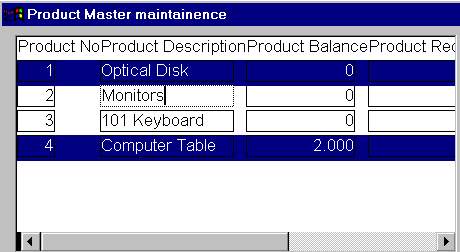
This service has three row selection styles, single, multiple and extended. When this service is enabled, by default, PFC selects only one row at any point of time which is the default behaviour even if you don't use this service. Passing 1 as parameter will select the clicked row, clicking on the selected row again will deselect the selected row. If you want to allow the user selecting multiple rows with the help of SHIFT or CTRL keys (called as Extended Select), you need to select style 2.
// Object: w_product_master
// Event: pfc_PostOpen
// Append this code.
dw_product.inv_rowselect.of_SetStyle(2)
// OR
// dw_product.inv_rowselect.of_SetStyle(&
         dw_product.inv_rowselect.EXTENDED)
// which is more readable than the first one.
Extend Select doesn't support selecting multiple rows using keyboard alone. You need to call of_SetKeyBoard().
// Object: w_product_master
// Event: pfc_PostOpen
// Append this code.
dw_product.inv_rowselect.of_SetKeyboard(TRUE)
The above code allows the user selecting multiple rows using keyboard, i.e., SHIFT, CONTROL and ARROW keys. The user needs to first select a row by clicking on it and can use other keys for the selection.
Unlike the explorer which allows you clicking on any file/directory with right mouse button without changing the current directory, PFC automatically changes the row, meaning all selected rows are gone, especially when you are using extended selection.
If your application needs, you can add a menu option to allow the user to invert the selection as shown below:
dw_product.inv_RowSelect.of_InvertSelection()
| Home | Previous Lesson: Query Service Next Lesson: Row Manager Service |