| Home | Previous Lesson: DropDown DataWindow/ListBox Search Next Lesson: Row Selection Service |
The following are the Query service features:
Similar to any other PFC service, you need to enable query service if you wish to use it.
// Object: w_product_master
// Event: pfc_PostOpen
dw_product.of_SetQueryMode(TRUE)
The above code creates an instance of the query mode service object. To put the DataWindow in the query mode, you can follow either the traditional method of using Modify() or calling query mode service function.
// Object: w_product_master
// Event: ue_query
// Traditional method of putting the dw in query mode.
dw_product.Object.DataWindow.QueryMode = 'Yes'
// OR
// dw_product.Modify('DataWindow.QueryMode=Yes')
// Object: w_product_master
// Event: ue_query
// PFC way of putting the dw in query mode.
dw_product.inv_querymode.of_SetEnabled(TRUE)
In order to retrieve the data as per the user's query criteria, you need to write one of the following depending on the method you following to put the DataWindow in query mode.
// Object: w_product_master
// Event: ue_query
// Write the following code if you followed traditional method earlier.
dw_product.AcceptText()
dw_product.object.DataWindow.QueryMode = 'No'
dw_product.of_Retrieve()
// Object: w_product_master
// Event: ue_query
// Write the following code if you called of_SetEnabled(TRUE) earlier.
dw_product.inv_querymode.of_SetEnabled(false)
In the second method, PFC takes care of accepting the text, turning the DataWindow in normal mode and retrieving the data. This gives you the same query mode functionality that we normally use. No extra amazing functionality like sort service. When you use the second method, make sure to call of_SetRetrieveOnDisabled() function before you put the DataWindow in the query mode.
// Object: w_product_master
// Event: pfc_PostOpen
// Append the following code if you want to use of_SetEnabled().
dw_product.inv_querymode.of_SetRetrieveOnDisabled(False)
By default, PowerBuilder doesn�t remember the previous query. For example, you make a query in the DataWindow at run-time and retrieve the data and go back to the query mode again, you will see blank records instead of the previous query criteria. However, with PFC, you can display the previous query.
// Object: w_product_master
// Event: pfc_PostOpen
// Append the following code.
dw_product.inv_QueryMode.of_SetResetCriteria (False)
Now, run the application and see how it works.
After entering the query in the query mode, if the user close the window without retrieving the data, PFC prompts the user for saving the changes. Set ib_DisableCloseQuery to TRUE before turning on the query mode in the ue_query mode. Set the same to FALSE in the ue_retrieve event of w_product_master before retrieving the data.
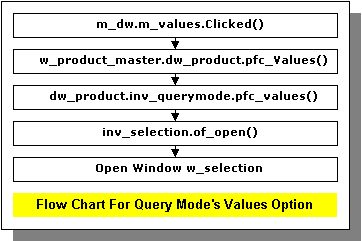
PFC dynamically creates a SELECT statement to retrive the distinct values for the requested(current) column. If you have a large table and don't want to allow the user selecting values for certain columns, you may want to disable 'Values' option in the DataWindow's popup menu. Do you know where to write the code? May be dw_product's rbuttonUp event. No, you should write code to dw_product's pfc_PreRmbMenu event, because, PFC has code to create popup menu in the ancestor DataWindow's rButtonUp event and it triggers pfc_PreRmbMenu event before it pop-ups the menu. The following code does the same for the product_description column in dw_product DataWindow.
// Object: w_product_master::dw_product
// Event: pfc_PreRmbMenu
boolean lb_enable_or_disable
lb_enable_or_disable = NOT (this.GetColumnName() = &
"product_description" )
if this.object.datawindow.QueryMode = "yes" then
   am_dw.m_table.m_values.enabled    = lb_enable_or_disable
end if
The second line in the above code is a kind of cryptic. lb_enable_or_disable will be set to false if the current column is product_description, otherwise, it is set to true. Below that, we are enabling or disabling Values menu option if the Data Window is in query mode. Otherwise, don't do anything.
In the above code, we are not allowing the user to select the value from the popup menu. However, (s)he can still type-in the operator and value in the edit field. For example, (s)he can type "Desk" in the product_description field. What if, if you don't want to allow any query on that column? Well, PFC has a solution for you. The following code disables product_description from querying.
// Object: w_product_master
// Event: pfc_PostOpen
// Append the following code.
int li_rc
String    ls_cols[]

ls_cols[1] = "product_no"
ls_cols[2] = "product_balance"
ls_cols[3] = "product_reorder_level"
ls_cols[4] = "product_measuring_unit"
li_rc = dw_product.inv_querymode.of_SetQueryCols(ls_cols)
By default, all columns are enabled in the query mode. To disable some columns in the query mode, you need to call of_SetQueryCols() method from query mode service. This method takes one string array argument that contains all query enabled column names. You can see that product_description column name is missing in the above code, meaning it is disabled from querying. In this case, product_description is disabled even if you set the tab order to a non-zero value at design time and not protected. As soon as you retrieve the data, i.e., set the DataWindow to normal mode, that column is enabled automatically.
As explained at the beginning of this topic, you can save the query criteria and load it when you need it. The following code assumes that you have created 'Save Query' and 'Load Query' menu options under 'File' menu option in m_sheet_menu menu. If not, create them.
Append the following code to ue_query event since we want these options enabled in the query mode only.
// Object: w_product_master
// Event: ue_query
// Append this code.
m_sheet_menu lm_menu1
lm_menu1 = this.menuid
if isValid(lm_menu1) then
   lm_menu1.m_file.m_savequery.enabled = TRUE
   lm_menu1.m_file.m_loadquery.enabled = TRUE
end if
The following code disables Save and Load Query menu options.
// Object: w_product_master
// Event: ue_retrieve
// Append this code.
m_sheet_menu lm_menu1
lm_menu1 = this.menuid
if isValid(lm_menu1) then
   lm_menu1.m_file.m_savequery.enabled = FALSE
   lm_menu1.m_file.m_loadquery.enabled = FALSE
end if
Define a user event ue_save_query in w_product_master and write the following code. This code calls of_Save() method from the query mode service which takes care of prompting for the file name and saving the query in the file.
// Object: w_product_master
// Event: ue_save_query
String ls_path_name, ls_doc_name
dw_product.inv_querymode.of_Save &
    ("Select a file to save this query", &
      ls_path_name, ls_doc_name)
The following code triggers ue_save_query event from 'Save Query' menu option.
// Object: m_sheet_menu::m_SaveQuery
// Event: Clicked
of_sendMessage('ue_save_query')
PFC saves the query criteria in tab separated format, similar to calling SaveAs() with Text! argument.
Similarly, define another user event ue_load_query in w_product_master and write the following code. This code calls of_Load() method from the query mode service which takes care of prompting for the file name and loading the query in the file.
// Object: w_product_master
// Event: ue_load_query
String ls_path_name, ls_doc_name
dw_product.inv_querymode.of_Load &
        ("Select a query file", ls_path_name, ls_doc_name)
Make sure you trigger ue_load_query event from 'Load Query' menu option with the following code.
// Object: m_sheet_menu::m_LoadQuery
// Event: Clicked
of_sendMessage('ue_load_query')
PFC doesn't support LIKE operator in the 'Operators' popup menu option. if you want to provide one to the user, you need to customize n_cst_dwsrv_querymode object.
If you ever want to find out whether the query mode is enabled, call:
dw_product.inv_querymode.of_GetEnabled()
You don't have to turn off the service, since PFC takes care of this in the u_dw's Destructor event.
After entering the query in the query mode, if the user closes the window without retrieving the data, PFC prompts for saving the changes. Write ib_DisableCloseQuery = TRUE, before turning on the query mode in the ue_query mode. Set it to FALSE in the ue_retrieve event of w_product_master, before retrieving the data.
| Home | Previous Lesson: DropDown DataWindow/ListBox Search Next Lesson: Row Selection Service |