| Home | Previous Lesson: Connecting to Jaguar Server using Jaguar Manager Next Lesson: Installing the Connection Cache |
When you expand Jaguar Manager in the TreeView, you will see a list of folders. These are the properties and configuration settings of the Jaguar Server to which you are currently connected.
In Jaguar, we need to define one connection cache for each database server that we want our PowerBuilder application to talk to. The Connection Cache is similar to a Database Profile in PowerBuilder. We are defining the connection parameters necessary for Jaguar to connect to the same database server that our Product Management System will need to access.
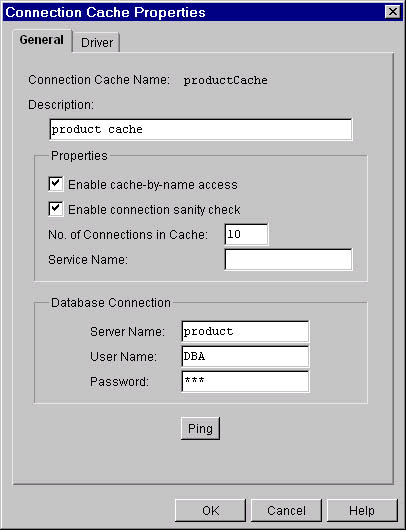
Expand Sybase Central > Jaguar Manager folder. Find Connection Caches folder and display popup menu on it and select New Connection Cache to install new cache. Provide 'productCache' for the Cache name prompt. Remember it is case-sensitive and make sure you use exactly the same case while coding later in this session.
Provide information as shown in the picture. Turning on Enable Connection Sanity Check option makes Jaguar to check whether the connection is reusable before placing it in the connection cache pool. Other options under Properties group are explained in detail later in this session. Under the Driver tab page, select ODBC and provide ODBC32.DLL for the DLL Name prompt and click OK button.
| Home | Previous Lesson: Connecting to Jaguar Server using Jaguar Manager Next Lesson: Installing the Connection Cache |