| Home | Previous Lesson: Tabular Presentation Style Next Lesson: Group Presentation Style |
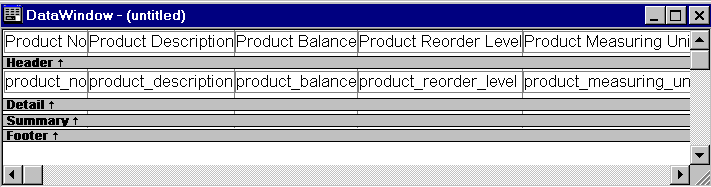
Invoke the DataWindow painter similar to the way you did in the previous section but select Grid instead of Tabular presentation style. DataWindow generated with the Grid presentation style is similar to the one with Tabular presentation style, except that its rows and columns are separated by grid lines:
The added advantage with the Grid style is that, at execution time users can resize columns and can even move entire columns around by clicking and dragging the column heading.
 Unlike the Tabular and FreeForm styles, headings and columns cannot be moved in the design view of a Grid style DataWindow. If new columns are added in the SELECT list by editing the data source, they will always be appended to the existing columns even if placed between existing columns. To reorder the columns, go to the preview view, rearrange the columns by clicking on the column heading and dragging in the direction you want. Any changes made in the preview view will be reflected in the design view automatically.
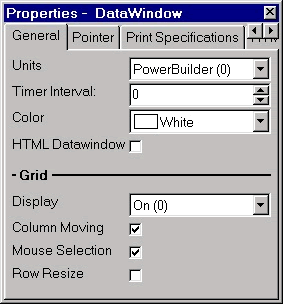
PowerBuilder makes this style even more flexible by allowing alteration of the basic grid characteristics. You can choose to:
Selecting the Grid Off option automatically disables column movement. Note that under these conditions, the Grid presentation style acts exactly like the Tabular style.
| Home | Previous Lesson: Tabular Presentation Style Next Lesson: Group Presentation Style |