
| Home | Previous Lesson: SQL Select Data Source Next Lesson: Sorting the Result Set |
The WHERE clause of the SQL SELECT statement is for specifying criteria for the data to be displayed:
This is similar to the Criteria row in the 'Quick Select' style DataWindow. Select columns from the DropDownListBox using operators to specify the type of comparison required. In this example, you can see that we've specified that the tran_type should be equal to 'R'. The Logical column allows you to build up complex criteria's with AND and OR statements.
Note that you don't have to supply the quotation marks around the value. PowerBuilder decides if it is needed based on the type of data and will add them as needed.
A right-click on the Value box allows you to select various options from the following pop-up menu:
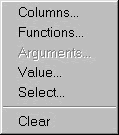
Selecting the Columns� option brings up another window with all the columns in the selected tables. Selecting Functions� will allow you to select a function available in PowerBuilder. The 'Select�' option allows you to create a nested SELECT statement also called as sub-SELECT. If you want to type a value, you don't need to invoke this popup menu, you can type it in as well. There is another option, 'Arguments...', which is enabled only if you have to set up any Retrieval Arguments. We'll show you how to use these arguments in a moment.
| Home | Previous Lesson: SQL Select Data Source Next Lesson: Sorting the Result Set |