| Home | Previous Lesson: Window Properties Next Lesson: Window Size, Position and Scrollbars |
You can specify a color for the window itself. By default, the color of the window is "Window Background". We know that the sentence is a bit confusing. To get out of the confusion, we need to explain some MS-windows color theory.
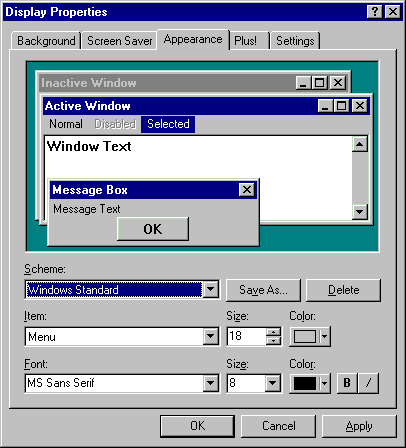
All system windows and applications that follow MS-Window's standards use MS-Window's system colors. You can view/change system colors from the Colors option in the Control Panel.
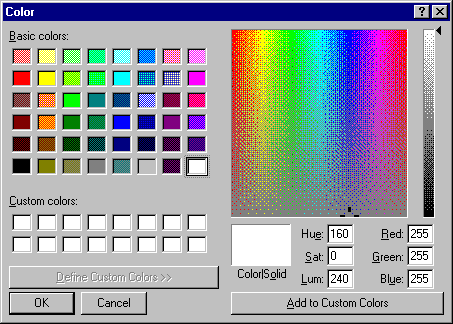
Here you can specify what the window's background color should be, what color the window title should have, what colors enabled/disabled menu options should have and so on.
Coming back to Window Background, if you select any color other than this, the end user will always see the color you specify. Please note that some users may not like the colors you defined or some users may be color-blind. That is one of the reasons why users start disliking the system.
If you select the window color as 'Window Background', the color of the window you painted would be the color they specify in the Control panel. That means every user can have the color they want.
For example, the 'Window Background' is defined as Gray on your system. You develop and deploy the application. The window color won't be guaranteed to be Gray. The window color on the user machine would be the color he defines as 'Window Background' color in the control panel on his machine.
| Home | Previous Lesson: Window Properties Next Lesson: Window Size, Position and Scrollbars |