Introduction to PowerBuilder
Window Controls
In addition to the StaticText control, the following controls are also available:
|

|
SingleLineEdit |

|
PictureListBox |
|

|
MultiLineEdit |

|
DropDownPictureListBox |
|

|
EditMask |

|
ListView |
|

|
CommandButton |

|
TreeView |
|

|
PictureButton |

|
CheckBox |
|

|
ListBox |

|
RadioButton |
|

|
DropDownListBox |

|
GroupBox |
|

|
Tab Control |

|
Line |
|

|
RoundRectangle |

|
Oval |
|

|
RichTextEdit |

|
HorizontalScrollbar |
|

|
Picture |
|
Rectangle |
|

|
DataWindow |

|
Graph |
|

|
VerticalProgressbar |

|
HorizontalProgressbar |
|

|
VerticalTrackbar |

|
HorizontalTrackbar |
|

|
StaticHyperlink |

|
PictureHyperlink |
|

|
UserObject |

|
VerticalScrollbar |
|

|
OLEControl |
Each control has certain properties, such as border, foreground color, name, etc. Once you place a control in the Window Workspace, you can change the control properties either:
- By clicking with the right mouse-button on the control and selecting Properties menu option from the popup menu. (OR)
- By double-clicking on the control.
The Properties pane is always open by default unless you close it. So, as soon as you place the control in the window, you can click in the Properties pane and start editing properties. The following picture is the Properties pane for the StaticText control.
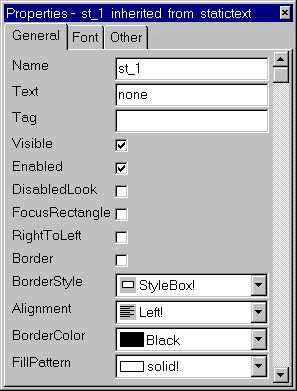
The value you specify for Text attribute is the text that it displays on the "StaticText" control; that is what the user sees. The default value for this is "none'. For this example, change this to: "Enter Name:", without quotes.
Each control has a name. The Name property allows you to refer to that control in the script. (We will explain naming conventions in a moment). Change the name to "st_name", without quotes. Users don't see the name, it is meant for the programmer to refer in the script.
Visible: By default this property is checked-on, Otherwise, users can't see this control even though it is on the window.
Enabled: This property is not checked by default. If this property is not set, nothing will happen when the user clicks on this control. Users can't tab onto this control when this property is not checked.
FocusRectangle: By default this option is not checked-off. If you do so, PowerBuilder displays a rectangle around the control. The control gets focus when the user either tabs onto the control or clicks on it with the mouse button.
You can choose from four borders, StyleBox, StyleBoxLowered, StyleBoxRaised and StyleShadowBox. The Align option aligns the text you provided for the Text property.
You can select the text font properties by clicking Font tab and choosing the appropriate option. In the Other tab, you can specify the dimensions and the position of the control, but we won't recommend choosing the x, y co-ordinates from this dialog box; instead click on the control and drag it to the correct position and resize it.
Pointer: By default, when you move the mouse pointer over the StaticText control, you will see the standard icon. The standard mouse pointer might be different on your computer; it depends on the pointer you select in the Windows setup. Typically, the pointer is an arrow, However, you can specify a different mouse pointer in this option. If you have a custom pointer that is not in the standard list, you can specify it by clicking on the dotted button placed opposite to the Pointer prompt. We will explain how to preview the window you are painting in a moment; you can test this property at that time.
We will explain about drag-and-drop in the coming sessions.
AcceleratorKey: When there are lot of controls in the window and when the user wants to jump from one control to another, he can either keep pressing tab till he reaches the control he wants to reach OR he can click with the mouse-button directly on the control. Remember, there is a large community out there who use keyboard shortcuts most of the time. If they want to reach the last control in the window while the focus is at the top, pressing tab keys would be pretty tiresome.
We can provide hot keys, by which they can jump to the controls directly by pressing them, no matter where the cursor is. In PowerBuilder, these hot keys are called as Accelerator Keys. User presses them in combination with the "Alt" key. To specify an accelerator key, you need to prefix the key with an ampersand (&). If you want "n" as an accelerator key for "Enter your name:", you need to type "Enter your &name:". The case of the accelerator key doesn't matter.
Please note that StaticText controls have no accelerator keys since we won't expect the user to do anything on the StaticText control itself. Other controls have accelerator keys but there is a problem of displaying the accelerator keys to the user. You will learn more about them in the SingleLineEdit" control.
RightToLeft: This property allows you to display text from right to left (opposite to the normal display). This property is good when you develop PowerBuilder applications for Arabic, Hebrew language users. The computer operating system should also be of that language version, otherwise this property has no effect.
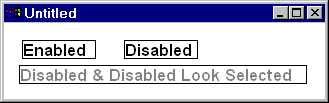
DisabledLook: Unlike other controls, the StaticText control displays the next in the normal way, even if you disable it by unselecting Enable property, where as other controls are grayed out when disabled. If you need the disable look, check off Enable property and check on DisabledLook property.
I am sure the font properties are self-explanatory and doesn't any explanation from me.