
| Home | Previous Lesson: Window Controls Next Lesson: Previewing the Window |
With the use of a StaticText control, you have asked the user to enter his name. But, there is no provision to input the data. For that you can make use of SingleLineEdit control. This control allows the user to input data.
HideSelection: By default, HideSelection property is selected. When you highlight some text in the control and then move the focus to a different part of the window�either by pressing the tab or clicking on other window control/other application�the highlighted text will remain highlighted if you deselect this option. This allows you to begin editing the text, move elsewhere to check on something, return and still be able to continue where you left off, without re-selecting the text.
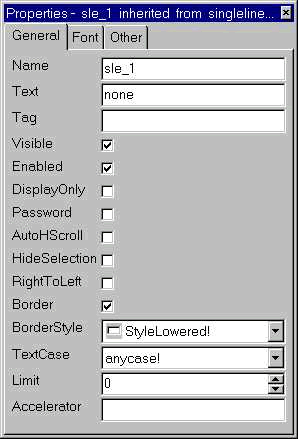
The TestCase property allows you to control the case of the text the user can enter. The user can enter text in either case, but if you specify upper or lower, the text would be converted automatically to the relevant case. For example, if you set TestCase property to "upper", even if the user is typing in the lower case, it will automatically convert into upper case.
AutoHScroll: The AutoHScroll property should be checked if there is lot of text to be entered. With this option selected, the text will automatically scroll as the user types the text. You don't have to use up lot of screen space with large SingleLineEdit boxes when you want the user to enter a large text. When designing windows and sizing controls, you should also keep in mind the various sizes and fonts that may be used.
Limit: If you don't provide any value for this property, user can type 32,787 characters. If you would like to restrict him as to how many characters he can type, you can do so by filling up the Limit property.
If you turn-on DisplayOnly property, then the SingleLineEdit control will be used to display data only; it will not accept input from the user.
The Accelerator property as described in the StaticText control, allows you to associate a hot-key with the SingleLineEdit control, which causes the focus to jump to it when the accelerator is pressed at any time, except while entering text into another control. For this control, user won't be able to see the accelerator key. However, you can display the accelerator key on the StaticText control and assign the actual accelerator key to the SingleLineEdit control. To display the accelerator key, prefix the character with an ampersand "&". To display "n" as the accelerator key on the StaticText control, change the 'Name' as Enter &Name:.
Any text that you type into this field will appear, by default, in the SingleLineEdit control, when the window is first opened.
Typical use of SingleLineEdit control is to accept limited data (either string or number) from the user in a single line. You can even accept password (explained later in this session), date, time, etc. For accepting date and/or time, EditMask is better suited than SingleLineEdit control.
Password: Sometimes, you might want to accept a password from the user. If you use SingleLineEdit control to accept a password, it will be displayed as the user types. In this situation, you need to turn on Password property. Turning on this property will display * as the user types the password.
I am leaving other properties that are common for all controls and those that are already explained earlier.
| Home | Previous Lesson: Window Controls Next Lesson: Previewing the Window |