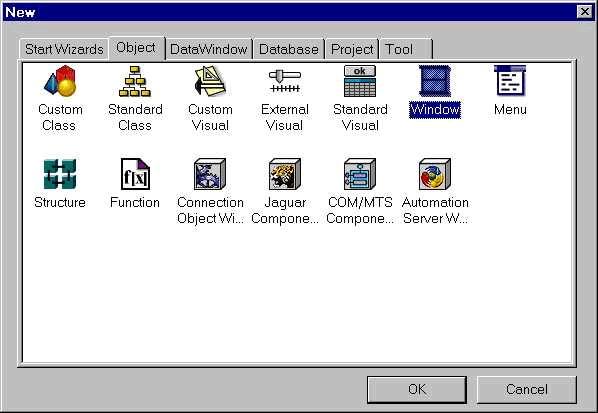
 from the Powerbar and click on Object tab page and double-click on the Window icon.
| Home | Previous Lesson: Introduction to Window Painter Next Lesson: Window Controls |
Invoke the Window painter by clicking on the New icon from the Powerbar and click on Object tab page and double-click on the Window icon.
Once the Window painter is open, it looks like:
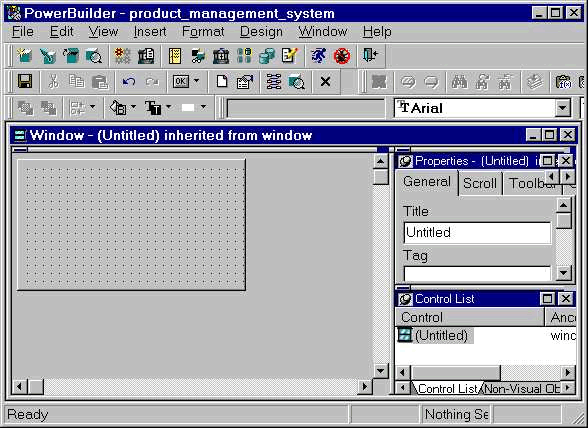
The rectangular area filled with dots that you see in the "Window - (Untitled) inherited from window" window is the window work area. The work area is the area where you can paint the window. If you want to have a large work area, move the mouse over the border of the work area (you know the window border when the mouse pointer changes to  or
or  or
or  ), click on the border and drag till you get the area you need.
In the previous section, we described in simple terms that a window is like a screen. Now, if you were from xBase background, what you would do to display "Enter your name:" on the screen. You probably would have coded @05,01 SAY "Enter your name:".
Later when the user wants it at a different position, you would have opened your program and changed the x and y co-ordinates. In PowerBuilder, you don't have to code the x, y co-ordinates; instead you place a control that is capable of displaying the given text and use the mouse to drag it to the correct position. The control that is used to display the text in PowerBuilder is called StaticText control. To place a StaticText control in the Window workspace, you can follow either of the following procedures:
Select Insert > Controls > StaticText from the menu and click in the workspace wherever you want to place the StaticText control. (OR)
From the Painterbar, click on the arrow that has OK and click on the StaticText control (Whichever displays "A") and click in the window workplace wherever you want to place it.
As the name suggests, the purpose of the StaticText control is to display text that won't be changed by the user. Of course, you can change the text programmatically at run-time using PowerScript.
| Home | Previous Lesson: Introduction to Window Painter Next Lesson: Window Controls |