| Home | Previous Lesson: ListView Next Lesson: Tab Control |
TreeView is similar to a ListView and it is more powerful. As the name suggests, it allows you to display items as a branch.
TreeView control is one of the Windows 95 controls i.e., these controls were introduced with the Windows 95 operating system. Using a TreeView control you can display hierarchical data in the window and create more user-friendly screens. The behavior of this control is similar to windows explorer.
Unlike ListBox and DropDownListBox you cannot specify the tree items at painting time. You need to write code to add tree items in the TreeView control.
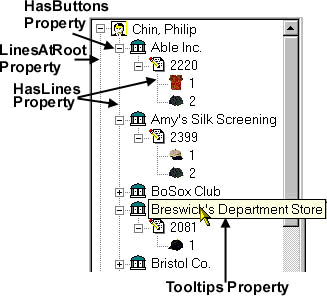
You can allow the user editing the label by turning on EditLabels property. Similarly, you can also allow the user to delete the TreeViewItems by turning on DeleteItems property. Like any other editable window controls, you can hide the selection when the TreeView control is not in focus by turning on HideSelection property. This is the default. The other four properties HasButtons, LinesAtRoot, HasLines and Tooltips properties are illustrated in the picture. ToolTip is displayed right under the mouse pointer, but only when them items' text clipped horizontally.
Plus box is shown only when that branch (item) has sub-branches (items below it's category) and are not expanded, for example, Bristol Co. Clicking on the plus box or double-clicking on the item's text expands the branch and minus box is shown, for example, Able Inc. Clicking on the minus box or double-clicking on the expanded branch collapses the branch and plus box is shown. If the item is the last item in that branch, no box is shown before it, for example, 1 and 2 under branch 220. SingleExpand property, when turned on, expands/collapses the branch with a single click. Similar to the hot tracking explained in ListView control, turning on the TrackSelect property highlights the item when the mouse moves over an item.
| Home | Previous Lesson: ListView Next Lesson: Tab Control |