Advanced PowerBuilder
Importing Excel
Spreadsheet using DDE
In this topic, we start a cold link DDE
conversation from PowerBuilder ( DDE Client ) to Excel ( DDE Server ). Let PowerBuilder
talk to Excel and get the data from Excel Spread sheet and insert it in the DataWindow
"dw_1".
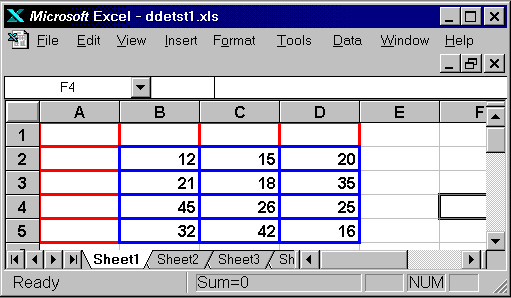
 Invoke Excel and create a spread sheet "ddetst1.xls",
as shown in the picture below. Don't worry about colors and other fancy stuff, we used
colors to make sure that you enter data in the correct place. We purposely left the first
row and column blank, as they normally contain headings and labels. Save the spread sheet
and keep the Excel and spread sheet open.
Invoke Excel and create a spread sheet "ddetst1.xls",
as shown in the picture below. Don't worry about colors and other fancy stuff, we used
colors to make sure that you enter data in the correct place. We purposely left the first
row and column blank, as they normally contain headings and labels. Save the spread sheet
and keep the Excel and spread sheet open.
Write the following code to the Clicked
event for the "Get Data From Excel" CommandButton.
// Object: cb_1 (Get Data From Excel)in window w_dde
// Event: Clicked
integer i, j, lExcelChannelNumber, lDDEGetRetVal
string lRetValFromExcel
long lNewRowNo
dw_1.DataObject = "d_dde_demo1"
// Actually you don't need the following one line,
// because we are using external data source.
dw_1.SetTransObject( SQLCA )
lExcelChannelNumber = OpenChannel( "Excel","ddetst1.xls")
For i = 2 to 5
    lNewRowNo = dw_1.InsertRow(0)
    For j = 2 to 4
       lDDEGetRetVal = GetRemote( "R" + string(i) + &
                       "C" + string(j), lRetValFromExcel,&
                       lExcelChannelNumber )
       dw_1.setitem( lNewRowNo, (j - 1), &
                     integer( lRetValFromExcel ))
    next
next
ExecRemote( '[File.Close()]', lExcelChannelNumber )
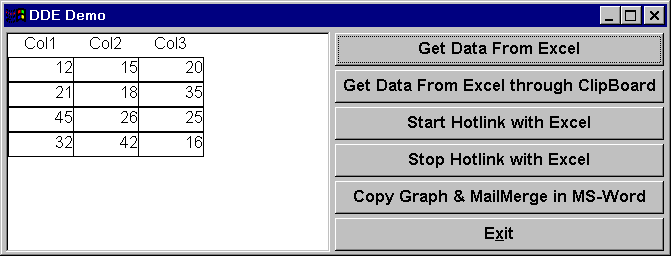
Invoke the application painter and comment
the code present in the "Open" event and just write Open( w_dde ). Run
the application and click "Get Data From Excel" button. You will see the
spreadsheet data in the DataWindow, as shown in the following picture. Notice that
"ddetst1.xls" is closed in Excel.
Since the same DataWindow object can be
associated to many DataWindow controls, our first task would be to re-assign DataWindow
object "d_dde_demo1" to DataWindow control "dw_1" and
then set up the default Transaction Object for data exchange.
A channel must be opened between
PowerBuilder and Excel - remember that, for a DDE conversation to take place, a DDE
channel must have already been allocated as a carrier. The OpenChannel() function accepts two parameters; the name of the application
with which we want to converse and the specific Topic that contains the data we are
interested in. In our case, the Application is Excel and the Topic is the name of the
appropriate spreadsheet, DDETST1.XLS.
 |
In a commercial application, you would
need to add an error handling routine to check if a positive number channel was returned.
If not, notify the user about the problem or keep trying for a certain number of time, in
a loop. |
We then use the GetRemote() function, passing the specific cell reference, we are interested
in retrieving. For example, 'R1C1' would refer to row one and column one. Once the
required data has been retrieved, we close the DDETST1.XLS file by sending the Close() function. If you are not familiar with Excel macros and
functions, refer to the Excel documentation.
 |
Note that the formula used to locate the
data in the server application's current Topic may differ from server to server. The
'R1C1' formula is specific to Excel. If you are using any other type of spreadsheet, or
indeed any other type of DDE server, refer to the documentation for that software, for
more information. |