 Paint a window "w_dde" as shown below.
| Home | Previous Lesson: DDE Events in PowerBuilder Next Lesson: Importing Excel Spreadsheet using DDE |
Now that we've explained some of the concepts behind DDE, let's learn about coding to use DDE in PowerBuilder. We will be using Excel and MS-Word in this DDE conversation.
Paint a window "w_dde" as shown below.
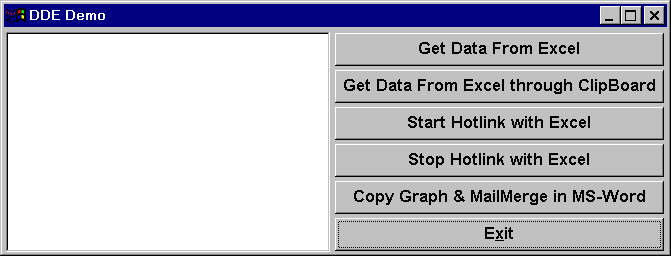
The left control is a DataWindow and all others are CommandButtons. Leave the names to their defaults. We expect you to paint CommandButtons from top to bottom, the names would be cb_1 to cb_6 respectively.
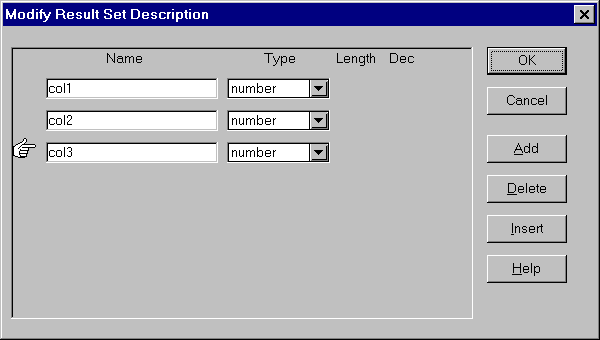
Create a DataWindow "d_dde_demo1" with "External" data source and "Tabular" presentation style. Give border to the columns in DataWindow. The following picture displays the data source definition.
We then assign the DataWindow object to the DataWindow control through script, depending on the CommandButton pressed.
 |
Note that for all Excel examples, we must have Excel running in the background with the required spreadsheet open. You can open Excel from PowerBuilder using the 'Run()' command, but you may experience problems while doing it. It's worth experimenting but, for guaranteed success, we'd recommend you to have Excel running. |
| Home | Previous Lesson: DDE Events in PowerBuilder Next Lesson: Importing Excel Spreadsheet using DDE |