| Home | Previous Lesson: Row Manager Service Next Lesson: Report Service |
If you want to print a single DataWindow as it is, you don�t have to write any code. PFC automatically prints the DataWindow that is in focus. However, if you are using multiple DataWindows to display the data or using hidden DataWindow/DataStore to print reports, you need to take care of the whole code. PFC print service gives one more functionality, i.e., printing the selected rows only. This feature is not available in a typical PowerBuilder application. To allow the user to print only the selected rows, you need to turn on the multiple row selection service.
If you wish to use print preview service, you need to turn on the service. Write the following in the pfc_PostOpen event of the w_product_master window:
dw_product.of_SetPrintPreview(TRUE)
At run-time, when the user selects File > Print Preview from the menu, PFC turns the DataWindow to the print preview mode. You need to select View > Ruler from the menu, if you wish to see the rulers.
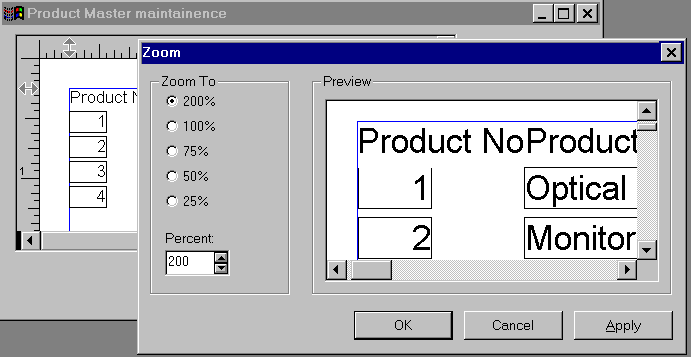
PFC has the functionality to display the DataWindow in the zoom mode when the DataWindow is in the print preview mode. When the user zooms the DataWindow, PFC displays the DataWindow in a different window instead of zooming in the same window. This behavior is good when you have multiple DataWindows on display and want to use one DataWindow for printing.
The purpose of EditMask control in the Zoom window is to accept the custom zoom percentage from the user. As of this writing time, you need to select one of those pre-defined percentages only. If you provide any other zoom percentage, it doesn't work.
Write the following code in the clicked event of the 'Print Preview Zoom' under the File option. Remember that we have defined "Print Preview Zoom" menu option. It wasn�t existing in the PFC menu.
of_SendMessage("pfc_zoom")
The sort service works in print preview mode also.
The Find service doesn't work in this mode, i.e, the find/find & replace dialog box still appears, but doesn't scroll to the first row it finds. Since it neither highlights the row not scrolls to the row, the user thinks it didn't find any row for the search criteria. So, you may want to disable 'Find' menu option when the DataWindow is in print preview mode.
Since the 'View > Zoom' doesn't work if the dw is not in the print preview mode, you may want to disable by default and toggle the mode appropriately. Open the m_sheet_menu and disable Zoom option under View option. Do the same for 'Ruler'.
When the DataWindow is in the print preview mode, PFC doesn't place a check mark before the File > Print Preview menu option. Don't you think it is a good idea to place one like that? Write the following in pfc_printPreview event in your dw, i.e., the DataWindow user object you that placed in the window.
// Object: w_product_master.dw_product
// Event: pfc_PrintPreview
m_sheet_menu lmenu1
lmenu1 = parent.menuID
if isValid(lmenu1) then
	lmenu1.m_view.m_zoom.Enabled = AncestorReturnValue
	lmenu1.m_view.m_ruler.Enabled = AncestorReturnValue
	lmenu1.m_edit.m_find.Enabled = NOT AncestorReturnValue
	lmenu1.m_edit.m_replace.Enabled = NOT AncestorReturnValue
	lmenu1.m_file.m_printpreview.Checked = AncestorReturnValue
end if
return AncestorReturnValue
AncestorReturnValue is a special variable introduced in v6.5. This variable is available in the descendent objects only when you extend the event. If you override the event and try to use this variable, you will get compiler error. The data type of AncestorReturnValue is automatically set to the data type of the ancestor event's return value.
In this case, AncestorReturnValue contains TRUE when the DataWindow is in print preview mode, otherwise it's value is FALSE.
| Home | Previous Lesson: Row Manager Service Next Lesson: Report Service |