| Home | Previous Lesson: Deleting Data from the DataWindow Next Lesson: Exporting the DataWindow |
PFC has defined a user-defined event pfc_retrieve for the DataWindow user object u_dw. However, there is no code written to that event and you need to write the code.
If you haven't defined Retrieve menu option under File option in m_sheet_menu, define one now.
Method 1: If the window has only one DataWindow, say like in w_product_master, you can write this code in the pfc_retrieve event.
// Object: w_product_master.dw_master
// Event: pfc_retrieve
Return This.Retrieve()
If you use this method, you need to send 'pfc_retrieve' message from File > Retrieve's clicked event by calling of_SendMessage('pfc_Retrieve')
Using this method may raise couple of issues. One, what if, if the focus is on some other control in the window and the previously focused control is not the DataWindow that you want to retrieve? Secondly, what if, if you have multiple DataWindows on the window? The answer is the second method explained below.
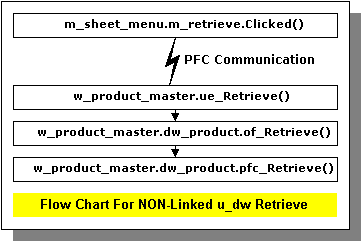
Method 2: If the window has multiple linked/un-linked DataWindows, define a user-defined event ue_retrieve at the window level and write the code. Return the number of retrieved rows as the return value. If all DataWindows are linked using the linkage service, then you need to retrieve from the master DataWindow.
// Object: w_product_master
// Event: ue_retrieve
Return dw_product.of_Retrieve()
Follow the second method since we are sending ue_retrieve message from the File > Retrieve menu item. We know that w_product_master doesn�t have multiple DataWindows, but we are using the second method to make it consistent.
If you use this method, you need to send 'ue_retrieve' message from File > Retrieve's clicked event by calling of_SendMessage('ue_Retrieve')
| Home | Previous Lesson: Deleting Data from the DataWindow Next Lesson: Exporting the DataWindow |