| Home | Previous Lesson: Saving Changes To the Database Next Lesson: Retrieving the Data |
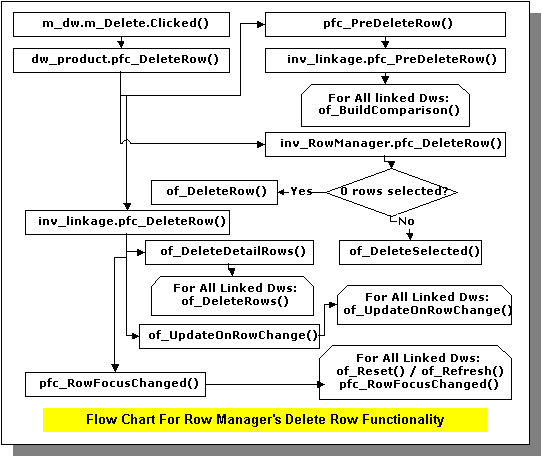
This is also a basic DataWindow service and is available by default with no code. However, the option to delete the record isn�t available from the Edit menu option. It�s available from the DataWindow�s popup menu.
PFC doesn�t apply the deletes in the database right away. User needs to apply the changes (including deletes) to the database by selecting File > Save from the menu. PFC prompts the user if (s)he closes the window without saving the changes.
By default, PFC doesn�t confirm deletes. You can ask PFC to confirm every delete by writing the following code:
dw_product.inv_RowManager.of_SetConfirmOnDelete(TRUE)
If you have enabled multiple row selection, and if the user selects "Delete" option from the popup menu when multiple rows are selected, PFC deletes only the last selected row. If you want to provide the functionality of deleting all the selected rows, you can do so by calling the of_DeleteSelected() function:
dw_product.inv_RowManager.of_DeleteSelected()
This menu is available even if you use the DataWindow user object u_dw for reporting purposes. You may want to disable delete option by writing the following code to the pfc_PreRmbMenu event of the specific DataWindow user object in the window.
am_dw.m_table.m_delete.enabled = False
Before displaying the popup menu, PFC triggers this event and sends the menu as an argument, am_dw.
You can set the display name for a single row by calling of_SetDisplayName() function. This function is declared at pfc_n_cst_dwsrv base object and is used in the confirmation box when user deletes a single row. Similarly, you can set the display name for multiple rows by calling of_SetDisplayUnits() function.
| Home | Previous Lesson: Saving Changes To the Database Next Lesson: Retrieving the Data |