| Home | Previous Lesson: Error Logging & Other Services Next Lesson: Transaction Registration Service |
Debug service is really useful in the development environment. Even though there is a default debugging facility, sometimes, you may want to do fast debugging instead of going step by step in the debug painter. For example, you may want to display a message box when an event router fails to deliver the message, but you don�t want to display it in the production environment. In that case, you can turn on the debugging service as shown below:
gnv_app.of_SetDebug(TRUE)
The above code creates the debug service. This code also displays a message box when a message is not processed (basically the message sent by the menu message router). There are two basic debug services that are available. One is DataWindow specific and the other one is SQL specific. For example, if you want to see all the SQL statements that are being generated by PowerBuilder to send to the database, then, you need to write the following code:
gnv_App.inv_debug.of_SetSQLSpy(TRUE)
The above code turns on the SQL spy service. Now, you have two options, either log all the SQL statements to a log file or display the SQL statements in a popup window. If you would like to log, you need to call the of_SetLogFile() function with the file name as a parameter.
gnv_appthis.inv_debug.inv_sqlspy.of_SetLogFile("SQLSpy.log")
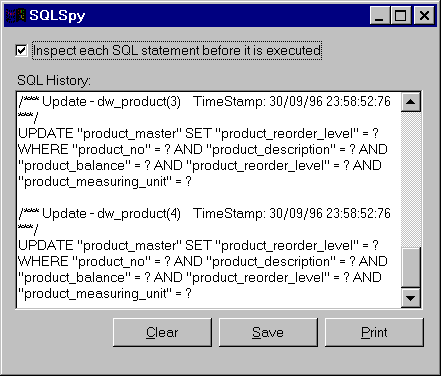
To display the SQLSpy popup window, call of_OpenSQLSpy(TRUE) function:
gnv_app.inv_debug.inv_sqlspy.of_OpenSQLSpy(TRUE)
The first check box in the above picture won�t be displayed with the above code. By default, the SQL spy utility works in the batch mode, which means, all the SQL statements are displayed/logged. It doesn�t allow you to change it before it actually gets executed. In any case if you would like to inspect the actual SQL statement before it is actually executed, you need to turn off the batch mode and turn on the inspect mode:
gnv_app.inv_debug.inv_sqlspy.of_SetBatchMode(FALSE)
gnv_app.inv_debug.inv_sqlspy.of_SetAllowInspect(TRUE)
Call these scripts before you open the SQLSpy window. Now, if you run the application, you would still see the SQL statements. Say, you open the w_product_master window and retrieve data from the database. Then you will see the SELECT statement in the SQLSpy window. You must be wondering why the utility didn�t prompt for changing the SQL. This utility doesn�t allow you to change the SQL while it retrieves the data. However, you can change the SQL before you update/delete/insert. For ex, if you change the description of one of the products and save the changes, PFC will prompt you as shown below:
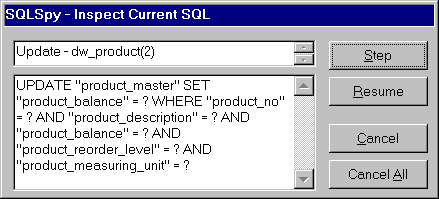
In this window, you can do changes to the SQL statements. Similar to the debug painter, you can execute one SQL statement at a time by using the "Step" button, OR you can ask the SQL Spy to execute all the SQL statements after the current one, without prompting. You can also use SQLSpy for DataWindows and embedded/dynamic SQL.
Sometimes, you need to debug the DataWindow, i.e., find out the row/item status, font/color or any other expression and so on. In that case, SQLSpy is not useful, since it deals with SQL only. For this purpose, you need to use w_dwDebugger window. We couldn�t find w_dwDebugger window in any of the PFE libraries (may be a mistake by Powersoft). Create a window by inheriting from pfc_w_dwDebugger window and save it as w_dwDebugger. You don�t have to change anything. Whenever you want to debug the DataWindow, write the following code. For example, say, you found that some funny things are going on when the user clicks with the right mouse button and you want to debug at that moment. Then write the following code to the rButtonDown event:
s_dwdebugger lstr_parm
lstr_parm.DW_obj = dw_product
lstr_parm.Tr_obj = SQLCA
OpenWithParm(w_dwdebugger, lstr_parm)
You will see the following window:
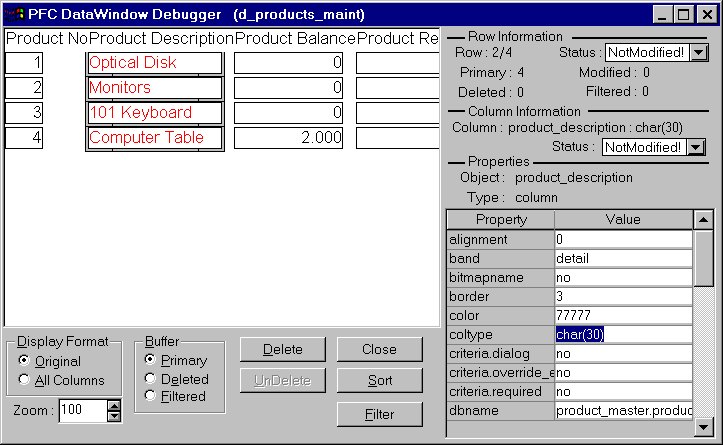
In this window, you can see the values of all the attributes of the selected row/column. You can also see rows from the deleted/filtered buffers. If you change the value of any attribute in this window, PFC automatically applies it to the actual DataWindow, as soon as you tab out of the changed field. In the above picture, we changed the border and as soon as we pressed the tab, PFC changed the border of that field. Cool, we didn�t write the MODIFY() function, PFC took care of it internally.
| Home | Previous Lesson: Error Logging & Other Services Next Lesson: Transaction Registration Service |