| Home | Previous Lesson: Creating Connection Service Object to Connect to Jaguar CTS Server Next Lesson: Jaguar CTS Component Options |
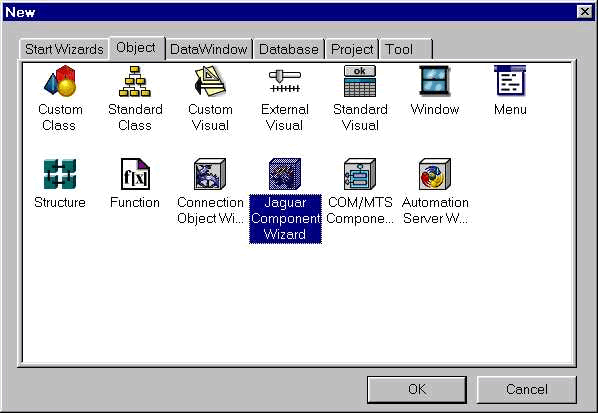
Select File > New and double-click on Jaguar Component Wizard option located in Objects tab page.
Specify options as listed below. If an option is missing from the following, then leave it to the default.
|
Wizard Screen Name |
Value to the Prompt |
|
Specify Destination Library |
Select product.pbl |
|
Specify New Component |
n_product_master |
|
Specify Jaguar Component Name |
Product_master |
|
Specify Server Information |
ServerName: localhost Port: 9000 Login ID: jagadmin Password: jagadmin |
|
Package Name |
Pms |
|
Specify Component Type |
Standard Component |
|
Specify Instance Pooling Options |
Supported |
|
Specify Transaction Support |
Select �Requires Transaction� Check Auto Demacration/Deactivation |
|
Specify Component Interface Build Options |
Check �Expose User Events as Methods� Check �Expose Public Instance Variables� Check �Allow NULL Values in Method Arguments� Check �Use of Unsupported datatypes generates an error�. |
|
Specify Other Component Options |
Check �Support Remote Debugging� Check �Supports Live Editing� |
|
Specify Project |
p_jag_product_master |
|
Specify Dynamic Library Options |
Check both the options. Provide product.pbd for the Consolidated PBD file. Provide product.pbr for the �Name of the Resource File� option. |
|
Ready To Create Jaguar Component |
Check Generate To-Do List |
Click on Finish button and check whether n_product_master and p_jag_product_master object are in the Library painter. The following section explains all those options you saw in the wizard in detail.
| Home | Previous Lesson: Creating Connection Service Object to Connect to Jaguar CTS Server Next Lesson: Jaguar CTS Component Options |