| Home | Previous Lesson: An Object To Export a DataWindow Next Lesson: Color CommandButton Object in the DataWindow Object |
We've already added some code to implement the Print Preview function, but as you will remember, it wasn't very useful - all it did was format the object ready for printing; no other functionality was provided.
We can improve on this by allowing the user to zoom in or out on the object when they Print Preview. As our user interface is now becoming much more graphic based, let's use a scrollbar to implement this extra feature.
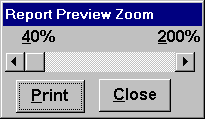
Paint a child window as shown in the following picture. Disabling the control menu, the resize, maximize and minimize buttons. At the top of the window we have two StaticText controls with 40% and 200% as the text. The control below the StaticText controls is a Horizontal Scrollbar, leave its name to the default. The rest are two CommandButtons, cb_print and cb_close. Save this window as w_print_preview_zoom.
Declare an instance variable called iDw of type DataWindow.
DataWindow iDw
Write the following code to the window's open event.
/* This script sets the minimum and maximum values for the horizontal scroll bar, takes the print preview zoom percentage of the datawindow through Describe function and sets the position of the scroll bar to the same position.
*/
Integer lDwZoom
iDw = Message.PowerObjectParm
If NOT IsValid( iDw ) Then Close( This )
iDw.Modify( "datawindow.print.preview=yes" )
lDwZoom = Integer( iDw.Describe( "datawindow.print.Preview.Zoom"))
hsb_1.MinPosition = 40
hsb_1.MaxPosition = 200
hsb_1.Position = lDwZoom
iDw.Modify("datawindow.Print.Preview.Rulers=yes")
The comments in the code explain exactly what this does. The final line turns on the rulers for print preview.
There are five specific events associated with a scrollbar, as depicted in the following table. These events are executed depending on what the user does or where he clicks.
|
Event |
When It Occurs |
|
lineleft |
Occurs when the user clicks on the left arrow |
|
pageleft |
Occurs when the user clicks between the current position and the left arrow |
|
move |
Occurs whenever the user drags the current position indicator |
|
pageright |
Occurs when the user clicks between the current position and the right arrow |
|
lineright |
Occurs when the user clicks on the right arrow |
The code for each of these is fairly simple. First, the LineLeft event:
/*
This event occurs when you click on the left arrow of the scrollbar. You need to set the position of the scrollbar and take care when the position goes below the minimum position and change datawindow print preview zoom percentage accordingly
*/
// Object: hsb_1
// Event: LineLeft
String lArg1
This.Position = This.Position - 1
If This.Position < This.MinPosition then This.Position = This.MinPosition
lArg1 = "datawindow.Print.Preview.Zoom=" + String( This.Position)
iDw.Modify( lArg1 )
We decrease the current position of the scrollbar by one unit and use Modify() to alter the print preview zoom value. Note that the above script is making sure that the zoom value doesn't exceed the minimum value.
// Object: hsb_1
// Event: LineRight
String lArg1
This.Position = This.Position + 1
If This.Position < This.MinPosition then This.Position = This.MinPosition
lArg1 = "datawindow.Print.Preview.Zoom=" + String( This.Position)
iDw.Modify( lArg1 )
The code for the PageLeft event is exactly the same, except that we move the current position by five units, as opposed to one:
// Object: hsb_1
// Event: PageLeft
String lArg1
This.Position = This.Position - 5
If This.Position < This.MinPosition then This.Position = This.MinPosition
lArg1 = "datawindow.Print.Preview.Zoom=" + String( This.Position)
iDw.Modify( lArg1 )
The amount by which you move the current position is entirely optional.
The scripts for LineRight and PageRight are exactly the same, except that they increase the current position by five and check that we don't go over the maximum value.
// Object: hsb_1
// Event: PageRight
String lArg1
This.Position = This.Position + 5
If This.Position < This.MinPosition then
		This.Position = This.MinPosition
End If
lArg1 = "datawindow.Print.Preview.Zoom=" + String( This.Position)
iDw.Modify( lArg1 )
The code for the Moved event is slightly different, but simpler than its cousins:
/* Sets the print preview zoom percentage to the position of the horizontal scroll bar */
String lArg1
lArg1 = "datawindow.Print.Preview.Zoom=" + String( This.Position)
iDw.Modify( lArg1 )
This code simply sets the print preview zoom property to the value of the current position of the scrollbar.
Finally, we want to actually be able to print the DataWindow once we've previewed it, so we add the following code to the Print button:
// Object: cb_print
// Event: Clicked
idw.Modify( "datawindow.Print.Prompt=yes" )
idw.Print( TRUE )
When the user close this window, we need to set the DataWindow back to normal, i.e., not in print preview mode. Write the following code to the clicked event of cb_close CommandButton.
//Object: cb_close
// Event: Clicked
iDw.Modify( "datawindow.print.preview=no" )
Close( Parent )
Want to see this in action? If you already don't have, add a menu item "Print Preview Zoom" just above the "Print Preview" under the "File" menu bar option in the m_sheet_menu menu. Write the code to trigger the ue_print_preview_zoom event in the active window. Declare ue_print_preview_zoom user-defined event and write the following code:
OpenWithParm( w_print_preview_zoom, dw_product )
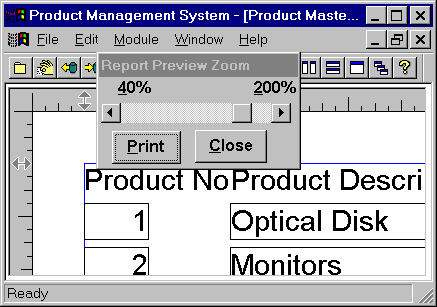
Run the application and test it. Working? Use it in your real applications. You pay No Royalties. But, you need to help us with a small thing. Right now, 40% and 200% is hard coded in the code. Make changes to set these values any number the user-developer of this utility wants. That's your exercise.
| Home | Previous Lesson: An Object To Export a DataWindow Next Lesson: Color CommandButton Object in the DataWindow Object |