| Home | Previous Lesson: Interactive DataWindow Sort Utility Next Lesson: Print Preview - Zoom Utility |
You can save the data contained in a DataWindow in most of the popular file formats, including .XLS, .DBF, tab delimited text and so on. We know that you learned about this in previous sessions. You have used SaveAs() to export the DataWindow. You might ask us, "Why we need to develop an object to export a DataWindow, when we can export it using a simple function call SaveAs()?" The answer is that, the text in the SaveAs dialog box is not user-friendly. For example, it says, CSV. It's a kind of cryptic. It would be more user-friendly if we display "Comma Separated Text (CSV)". There is no facility that allows us to change the text of the prompts in the SaveAs dialog box. So, we need to develop our own.
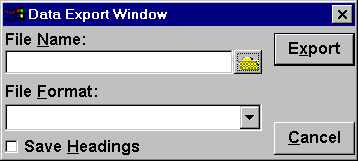
What we're going to do is painting a popup window with required controls. We haven't used a popup window till now. Now, you can see it in action. Paint a window as shown in the picture below. The controls are ( left top to bottom, right top to bottom ) Static Text control (st_file_name), SingleLineEdit control (sle_file_name), Static Text control (st_file_format), DropDownListBox (ddlb_file_format), CheckBox ( cbx_heading ). The control that is next to the sle_file_name is a PictureButton (pb_file_browser). The controls in the right side are cb_export and cb_cancel.
Disable the maximize, minimize and resize options of the window and set the window type as "Popup" window and save the window as w_export.
Declare an instance variable called idw_to_save as a DataWindow.
DataWindow idw_to_save
Now, add the following code to the "Open" event of this window:
// Object: w_export
// Event: Open
If IsValid( Message.PowerObjectParm ) Then
idw_to_save = Message.PowerObjectParm
Else
Close ( This )
End If
SetFocus( ddlb_file_format )
Return
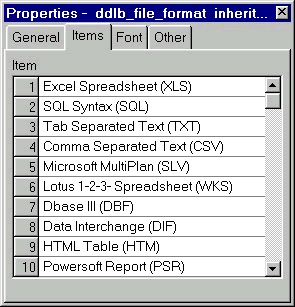
In the above code, we are expecting the DataWindow name that is supposed to be exported, as the parameter. When this window is opened using OpenWithParm() function, you can pass the DataWindow as the parameter in the function. As explained in the 'InterObject Communication' topic in the "MDI Windows" session, the parameters passed in this way are stored in the Message object. Later, we are setting the focus to the DropDownListBox to allow the user selecting the format to export.
Write the following code for the Clicked event of the cb_file_name CommandButton.
// Object: cb_file_browser
// Event: Clicked
/*
This script makes sure that user selects one of the file types and
if selected, invokes a dialog box to accept the file name
All the if conditions below simply display the selected type
of files in the Select File dialog box.
*/
string lFileTypes, lFileExt, lFileName, lTitle1
int lRetValue
If Trim(ddlb_file_format.text) <> "" Then
lFileName = Right(ddlb_file_format.text,5)
Else
MessageBox( "Info", "Please select the file format," + &
	" before you select the file name", Information!, OK!,1 )
Return
End If
CHOOSE CASE lFileName
	CASE "(CSV)"
	 lFileTypes = "Comma Separated Files (*.CSV),*.CSV"
	lFileExt = "CSV"
	CASE "(DBF)"
	 lFileTypes = "Dbase Files (*.DBF),*.DBF"
	lFileExt = "DBF"
	CASE "(DIF)"
	lFileTypes = "DIF Files (*.DIF),*.DIF"
	 lFileExt = "DIF"
	CASE "(XLS)"
	lFileTypes = "Excel Files (*.XLS),*.XLS"
	 lFileExt = "XLS"
	CASE "(WKS)"
	lFileTypes = "Lotus 1-2-3 Ffiles (*.WKS),*.WKS"
	 lFileExt = "WKS"
	CASE "(SLV)"
	lFileTypes = "Multiplan Files (*.SLV),*.SLV"
	 lFileExt = "SLV"
	CASE "(SQL)"
	lFileTypes = "SQL Files (*.SQL),*.SQL"
	 lFileExt = "SQL"
	CASE "(TXT)"
	lFileTypes = "Text Files (*.TXT),*.TXT"
	 lFileExt = "TXT"
	CASE "(HTM)"
	lFileTypes = "HTML Tables (*.HTM),*.HTM"
	 lFileExt = "HTM"
	CASE "(PSR)"
	lFileTypes = "PowerSoft Report (*.PSR),*.PSR"
	 lFileExt = "PSR"
	CASE "(WMF)"
	lFileTypes = "Windows Meta Files (*.WMF),*.WMF"
	 lFileExt = "WMF"
END CHOOSE
lRetValue = GetFileSaveName("Save file as", sle_file_name.text, lTitle1, &
lFileExt, lFileTypes)
If lRetValue = 1 then cb_ok.enabled = TRUE
We simply check which file type the user selects from the DropDownListBox and call the GetFileSaveName() function. This function invokes a standard dialog box, to allow the user to select or supply a file. It takes the following five parameters:
If the user supplies a valid filename, we enable the Export CommandButton. The code for this control's clicked event is:
// Object: cb_export
// Event: Clicked
/* Basically, this script uses the SaveAs() function. Depending on the format type user selects, the appropriate Enumerated file type is supplied to the function. You cannot use macro like in dBase/FoxPro. That's why the script looks very big for a simple thing. */
boolean lSaveHeadings
Int lUserAnswer
String lFileName, lFileExt
lFileName = Trim(sle_file_name.Text)
lFileExt = Upper(right(ddlb_file_format.text,5))
If lFileName <> "" then
If FileExists( lFileName ) then
	lUserAnswer = MessageBox( "Warning!", lFileName + &
		" already exists." + "~r" + &
		"Do you want to override the existing file? ", &
		StopSign!, YesNo!, 2)
	If lUserAnswer = 2 Then Return
End If
If cbx_heading.checked then
	lSaveHeadings = TRUE
else
	lSaveHeadings = FALSE
End If
If lFileExt = "(CSV)" then
	idw_to_save.SaveAs( lFileName, CSV!, lSaveHeadings )
elseif lFileExt= "(DBF)" then
	idw_to_save.SaveAs( lFileName, dBASE3!, lSaveHeadings )
elseif lFileExt= "(DIF)" then
	idw_to_save.SaveAs( lFileName, DIF!, lSaveHeadings )
elseif lFileExt= "(XLS)" then
	idw_to_save.SaveAs( lFileName, Excel!, lSaveHeadings )
elseif lFileExt= "(WKS)" then
	idw_to_save.SaveAs( lFileName, WKS!, lSaveHeadings )
elseif lFileExt= "(SLK)" then
	idw_to_save.SaveAs( lFileName, SYLK!, lSaveHeadings )
elseif lFileExt= "(SQL)" then
	idw_to_save.SaveAs( lFileName, SQLInsert!, lSaveHeadings )
elseif lFileExt= "(TXT)" then
	idw_to_save.SaveAs( lFileName, Text!, lSaveHeadings )
elseif lFileExt= "(HTM)" then
	idw_to_save.SaveAs( lFileName, HTMLTABLE!, lSaveHeadings )
elseif lFileExt= "(PSR)" then
	idw_to_save.SaveAs( lFileName, PSREPORT!, lSaveHeadings )
elseif lFileExt= "(WMF)" then
	idw_to_save.SaveAs( lFileName, WMF!, lSaveHeadings )
end if
Close ( Parent )
end if
This script makes use of the SaveAs DataWindow function. Depending on the selected file format, it calls the SaveAs with appropriate enumerated data type. If the user has selected the Save Headings also checkbox, we also set lSaveHeadings to TRUE. This causes the function to include the headings with the data.
The Close button simply closes the window:
// Object: cb_close
// Event: Clicked
close( Parent )
Want to see this in action? Open the w_product_master window and comment all the code for the ue_export event and write the following code and run the application.
OpenWithParm( w_export, dw_product )
Return 0
| Home | Previous Lesson: Interactive DataWindow Sort Utility Next Lesson: Print Preview - Zoom Utility |