 Unlike the DOS file system, where you can have a file and directory with the same name, You can't have a storage and stream with the same name.
| Home | Previous Lesson: OLE 2.0 Part II Next Lesson: Nested Storages |
OLE includes a hierarchical storage system, which resembles a file system within a file. There are two levels of storage in the OLE storage system: storage objects, which can be viewed as the directory level in a typical file system, and stream objects, which can be viewed as the file level. A storage object may contain streams and/or other storage objects; a stream object contains data. Each OLE object is assigned its own storage object. Access to objects and data within the OLE storage system is through a set of interfaces provided by OLE. OLE provides an implementation of this storage system that it calls compound files.
Unlike the DOS file system, where you can have a file and directory with the same name, You can't have a storage and stream with the same name.
Although OLE applications are not required to use compound files, compound file usage is encouraged because the OLE storage system provides efficient and flexible access to object data. The storage system interfaces allow objects, or portions of objects, to be read from disk to memory without the need to load the entire file. This feature is significant when loading a compound document that contains either a large number of objects or a single large object such as a video clip since it is more efficient to load only the data that is currently needed. That is, applications need not wait for unwanted data to be loaded before the wanted data is made available to the user.
The OLE storage system can be used for a variety of storage needs. The following figure shows an example of how a simple compound document that consists of some text, an embedded worksheet object, and a nested embedded chart object can be stored.
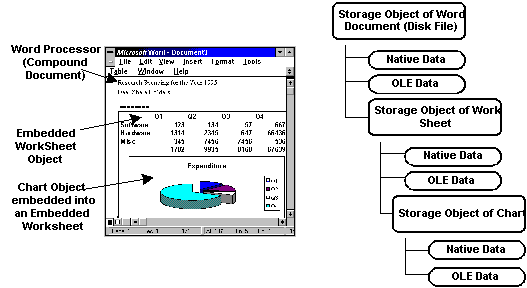
When the compound document in the above figure is saved to disk, it is saved as a single file that contains separate "internal" storage areas for each object. The highest level of storage for this file is the storage object for the document, which is the disk file. The document storage object contains stream objects for the document's native data (text in this case) and OLE data, as well as a storage object for the embedded worksheet object. The worksheet object in turn contains streams for its native data and OLE data, plus a storage object for the embedded chart.
For those applications requiring the ability to undo changes made to a document during an edit session, the storage system includes a two-phase commit operation. An application choosing to save in transacted mode has both the old and new copies of the document available until the user chooses to save or undo the changes. Applications not needing this feature can choose to save in direct mode where changes to the document and its objects are incorporated as they are made.
The following example shows storing an OLE object in the storage:
OLEStorage lOLEstorage
int lresult
lOLEstorage = create OLEstorage
lresult = lOLEstorage.open( "c:\workdir\ole_tst.ole" )
If lResult <> 0 Then goto CompleteExecution
lresult = ole_control1.open( "c:\workdir\oletest.ppt" )
If lResult <> 0 Then goto CompleteExecution
ole_control1.SaveAs( lOLEstorage, "oletest.ppt" )
CompleteExecution:
lOLEstorage.save()
lOLEstorage.close()
destroy lOLEstorage
SaveAs() function comes in different flavors. Calling ole_control1.SaveAs( FileName ) saves the file in the specified operating system file. Calling ole_control. SaveAs( OLEStorageName, "FileName" ) save the OLE object as a sub-strorage in the specified storage file. The above example saves the object that is opened in the OLE control as a member of the "OLE_TST.OLE" storage.
You may want to list all the sub-storages in a storage file. For this you need to use stream functionality and write the label for the every sub-storage member you write in the storage: The following example opens all the selected files into the OLE control one after the other and saves all those selected file in the specified OLE Storage file as members; At the same time, it will also write labels for each sub-storage it writes in the storage.
Save selected files to the storage (by inserting in the OLE control )
OLEStorage lOLEStorage
OLEStream lOLEStream
Integer lTotalItems, lResult, i
Long lPosToStartWriting
String lStr, lFileNameWithPath, lFileName, lContents
lTotalItems = lb_1.TotalItems()
If lTotalItems = 0 Then Return
lResult = GetFileSaveName( "Select OLE File to Open", &
	lFileNameWithPath, lFileName, &
	"OLE", "OLE Files (*.OLE), *.OLE" )
If lResult = 0 Then Return
lOLEStorage = Create OLEStorage
lOLEStream = Create OLEStream
lResult = lOLEStorage.Open( lFileNameWithPath )
lStr = sle_dir.Text
If NOT (Right( Trim( sle_dir.Text),1) = "\") Then
	lStr = Trim( lStr ) + "\"
End If
lResult = lOLEStream.Open( lOLEStorage, &
	"Contents", StgReadWrite! )
If lResult <> 0 Then goto CompleteExecution
// Read the whole label, and move the write pointer to
// the last byte,by that we can append to the label.
lResult = lOLEStream.Read( lContents )
lOLEStream.length( lPosToStartWriting )
For i = 1 to lTotalItems Step 1
		// Act only if the items is selected in the list box.
		If lb_1.State(i) = 1 Then
				// Insert the file in the OLE control.
				lResult = ole_control1.InsertFile( lStr &
									+ lb_1.Text(i) )
		If lResult <> 0 Then
				MessageBox( "Insert File Error", lResult )
				Goto CompleteExecution
		End If
		// Save the opened OLE Object as a sub-storage
		lResult = ole_control1.SaveAs( lOLEStorage, &
									lb_1.Text(i) )
		If lResult <> 0 Then
				MessageBox( "File Save Error", lResult )
				Goto CompleteExecution
		End If
		// Move the pointer to the next byte to write the label.
		lOLEStream.Seek( lPosToStartWriting )
		// Write the label for each object you save
		// as the sub-storage.
		lResult = lOLEStream.Write( lb_1.Text(i) + "~n" )
		If lResult < 0 Then Goto CompleteExecution
	End If
Next
Goto CompleteExecution
CompleteExecution:
ole_control1.Save()
lOLEStorage.Close()
Destroy lOLEStream
Assuming you selected two files "OLE_TEST.DOC" and "OLE_TEST.XLS" to save as OLE objects in the storage, the internal structure looks like the following figure after executing the above script:
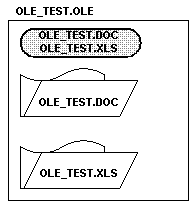
It is the same logic as shown in the previous example we used to save the OLE object in the storage as a sub-storage. However the more logic goes writing the label using the stream.
Stream stores the native data. It is not recommended to manipulate the stream data by the OLE Client unless the client writes to that stream. Suppose a PowerBuilder application write to a stream, other PowerBuilder applications can modify that stream. However, for streams written by other OLE Server, It is good to invoke the OLE Server that wrote the stream, to modify the data.
Stream object offers few functions to read/write to the stream and you will see using all the available functions at the stream in the above example. In the above example, Open() opens the a stream "contents" in read-write mode. "contents" is like the name of the file in the DOS file structure. After opening, the Read() reads the whole content of the stream into the specified variable. Calling the Length() returns the length of the stream content and we are moving the pointer to the last byte of the stream by calling the Seek().
We have a generic function Len( "String" ) which returns the length of the passed string and stores in the assigned variable . However, for the Length() function, you need to pass a variable that stores the length of the stream as the argument. Write() writes the specified content to the stream. We are using the special character "~n" (new line) at the end of the each label to separate the labels.
The following example does the same thing as the above script, except, this script opens all the OLE Objects in the OLE Control instead of Inserting in the OLE Control. This script runs faster because, opening the OLE Object doesn't need to invoke the OLE Server, which makes the script to run faster. Where as InsertFile() invokes the associated OLE Server, even though it will not activate the inserted object. Invoking the OLE Server takes a lot more time than simply calling the interface functions to the OLE object to know what class the object belongs to and to know the display information. Each OLE Object has to provide some minimum interfaces that says what methods it supports, to return the display information, otherwise, it is not an OLE Object at all. So, invoking this method takes a lot less time than invoking the server it self.
OLEStorage lOLEStorage
OLEStream lOLEStream
Integer lTotalItems, lResult, i
Long lPosToStartWriting
String lStr, lFileNameWithPath, lFileName, lContents
lTotalItems = lb_1.TotalItems()
If lTotalItems = 0 Then Return
lResult = GetFileSaveName( "Select OLE File to Save", &
				lFileNameWithPath, lFileName, &
				"OLE", "OLE Files (*.OLE), *.OLE" )
If lResult = 0 Then Return
lOLEStorage = Create OLEStorage
lOLEStream = Create OLEStream
lResult = lOLEStorage.Open( lFileNameWithPath )
lStr = sle_dir.Text
If NOT (Right( Trim( sle_dir.Text),1) = "\") Then
		lStr = Trim( lStr ) + "\"
End If
lResult = lOLEStream.Open(lOLEStorage,"Contents",StgReadWrite!)
If lResult <> 0 Then goto CompleteExecution
lResult = lOLEStream.Read( lContents )
lOLEStream.length( lPosToStartWriting )
For i = 1 to lTotalItems Step 1
	If lb_1.State(i) = 1 Then
			lResult = ole_control1.Open( lStr + lb_1.Text(i) )
			If lResult <> 0 Then
					MessageBox( "File Open Error", lResult )
					Goto CompleteExecution
			End If
			lResult = ole_control1.SaveAs( lOLEStorage, lb_1.Text(i) )
			If lResult <> 0 Then
					MessageBox( "File Save Error", lResult )
					Goto CompleteExecution
			End If
			lOLEStream.Seek( lPosToStartWriting )
			lResult = lOLEStream.Write( lb_1.Text(i) + "~n" )
			If lResult < 0 Then Goto CompleteExecution
	End If
Next
Goto CompleteExecution
CompleteExecution:
ole_control1.Save()
lOLEStorage.Close()
Destroy lOLEStream
Till now we are saving the specified OLE Objects to the storage files. Now, let us see how to open a sub-storage and display in the OLE Control. This is very simple logic, just you need to call the Open() for the OLE Storage and call another Open() to open in the OLE Control.
OLEStorage lOLEStorage
Integer lResult, I
lOLEStorage = Create OLEStorage
lResult = lOLEStorage.Open( iOLEFileToOpen )
lResult = ole_control1.Open( lOLEStorage, lb_2.SelectedItem() )
If lResult <> 0 Then
		MessageBox( "File Open Error", lResult )
		Destroy lOLEStorage
	Return -1
Else
	MessageBox( "Open", "Successful" )
End If
lOLEStorage.Close()
Destroy lOLEStorage
In the previous example, while storing the objects in the OLE Storage as sub-storages, we also made use of streams to write the labels. If there is no label, how do you know what sub-storages a storage contains? Since, we have taken care of this problem, let us see how to read the stream and display the labels for each sub-storage:
Integer lResult, lBeginPos, lEndPos
String lFileNameWithPath, lFileName, lLabel, lItemText
Long lLength
OLEStorage lOLEStorage
OLEStream lOLEStream
lOLEStorage = Create OLEStorage
lOLEStream = Create OLEStream
lResult = GetFileOpenName( "Select OLE File to Open", &
				lFileNameWithPath, lFileName, &
				"OLE", "OLE Files (*.OLE), *.OLE" )
If lResult = 0 Then Return
lResult = lOLEStorage.Open( lFileNameWithPath )
iOLEFileToOpen = lFileNameWithPath
lResult = lOLEStream.Open( lOLEStorage, "Contents", StgRead! )
If lResult <> 0 Then
		MessageBox( "Error opening label", lResult )
		Goto CompleteExecution
End If
lb_2.Reset()
lResult = lOLEStream.Read( lLabel, True )
If lResult > 0 Then
	lResult = lOLEStream.Length( lLength )
	If lLength > 0 Then
		lBeginPos = 1
		lEndPos = 0
		Do While True
			lEndPos = Pos( lLabel, "~n", lBeginPos )
			If lEndPos <> 0 Then
				lItemText = Mid( lLabel, lBeginPos, &
				(lEndPos - lBeginPos) )
				lb_2.AddItem( lItemText)
					lBeginPos = lEndPos + 1
			Else
				Exit
			End If
		Loop
End If
End If
CompleteExecution:
lOLEStorage.Close()
lOLEStream.Close()
Destroy lOLEStorage
Destroy lOLEStream
First we need to read the stream called "contents" and check for the new line character and list the name in the ListBox and continue doing so till the end of the stream.
| Home | Previous Lesson: OLE 2.0 Part II Next Lesson: Nested Storages |