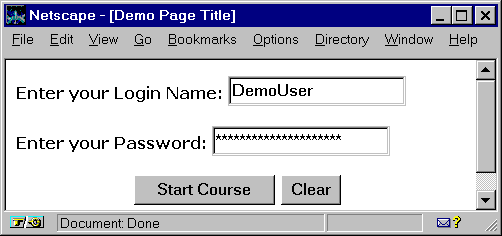
In the HTML code a form starts with
<FORM> tag and ends with </FORM> tag. You specify the program to execute with the ACTION keyword. Like the SingleLineEdit, MultiLineEdit, ListBoxs we use in a PowerBuilder window, there are some standard controls that can be displayed in a form. In the above code, we are using a control similar to the SingleLineEdit control. The control we used for accepting password is also a text control, with the password property turned on using TYPE=PASSWORD keyword.As far as buttons are concerned, there are two types of CommandButtons available in the form. One is
RESET, which clears the values that are entered in a form (controls between <FORM> and </FORM> are considered one form). A single HTML page can contain any number of forms. Other type of button is the SUBMIT. When you click this button, the browser will ask the server to execute the file specified in the ACTION keyword. When the browser requests the server for the file execution, it sends parameters to the executable file. Each control you use in the form becomes a parameter. In the above code we are using two controls, one for login name and another for password. So, the browser sends two parameters to the web server.A browser sends requests to the server in one of the two ways, i.e., get or post. In the above example we are using the
GET method. This method is useful for sending small amount of data to the web server. POST method is good for sending large amounts of information. Depending on the method the browser uses, parameters are populated in different environment variables on the web server.