| Home | Previous Lesson: Course 3:: Session 29 :: Page 20 Next Lesson: Course 3:: Session 29 :: Page 40 |
Tables
When you create a table in Microsoft Word, you will not write any code, instead, you
will be concentrating on how to present your business data. However, as a programmer, you
need to write the HTML code, to display data as table in the web page. With the latest web
editors, things are made so easy that, you can insert a table in the web page similar to
the way you insert table in the Microsoft word. However, not all browsers support all tags
for creating tables in the web page and you need to tweak here and there to make it a
better looking web page. In this section, we explain the basic HTML tag for HTML tables.
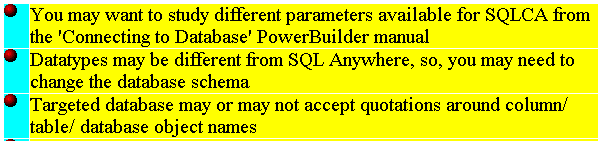
Examples in this section are based on the following picture.
Every
HTML tag starts between <> and similarly ends with a slash before the tag. For example, the TABLE tag would be:<TABLE>..</TABLE>
You can specify the table attributes in the TABLE tag. For example, the following code specifies that the table has no border (BORDER tag), has width 100% of the web browser width (WIDTH tag), no space between each cell (CELLSPACING
tag), and that the cell is not padded with any space (CELLPADDING tag)
<TABLE WIDTH="100%" BORDER="0"
CELLPADDING="0" CELLSPACING="1"></TABLE>
Then between the TABLE tags, you need to
specify tags for the rows (TR)
<TABLE WIDTH="100%" BORDER="0"
CELLPADDING="0" CELLSPACING="1"> Typically you will not be specifying any row attributes unless you want to span a
particular row over multiple rows. The next one is cell tag ( <table border="0" cellpadding="0"
cellspacing="1"> The above code says to align the text in that cell at the top vertically and left side
horizontally and the width of the cell is 600 pixels. You can specify width either in
pixels or in terms of the web browser width. If you choose the second one, browser will
adjust the width automatically whenever the user resizes the browser, which is good in
most cases. Similar to the rows, you can specify the cell to span multiple cells. In the
above example, the table is just used to align the text, and not to show the data as a
table. When you really want to show data as a table, you can make use of border colors and
create lot of visual effects. You can also use different images as background for each
cell in the table. You can create nested tables and there is no limit on the number of
nests.
<TR></TR>
</TABLE>
<tr>
<td valign="top" bgcolor="#00FFFF">
<img src="images/red-aqua-ball.gif" width="25"
height="13">
</td>
<td valign="top" bgcolor="#FFFF00">
<font color="#000000" size="3">You may want to study different
parameters available for SQLCA from the 'Connecting to Database' PowerBuilder
manual</font>
</td>
</tr>
<tr>…
</table>
| Home | Previous Lesson: Course 3:: Session 29 :: Page 20 Next Lesson: Course 3:: Session 29 :: Page 40 |