In the project painter, PowerBuilder automatically fills up the Library list for you. Choose whether you want to create DLLs or one executable. Objects in the libraries that are not marked for the DLL/PBD are put in the executable.
If there are any resources that are required for objects in different libraries, then specify the resource file name for the executable (second prompt from top). If you create separate resource files for each library, then specify the resource file for the library; This requires a lot of planning and design efforts.
Select Prompt For Overwrite if you want PowerBuilder to prompt you before overwriting any files it creates when building your application.
If you select Full for the Rebuild option, PowerBuilder regenerates all the objects. If you select incremental, then PowerBuilder regenerates only those objects that have been changed since the last time you rebuilt your application. PowerBuilder maintains "last-saved" and "last-compiled" timestamps for each object. If incremental Rebuild is selected, these timestamps are checked. For an object, its last-compiled timestamp is compared with the last-saved timestamp of "all its ancestors" and "any object that it references". If PowerBuilder finds an object in either category that was saved after the current object was last compiled, it recompiles the current object.
One advantage of generating PBD/DLL is that, You don’t have to redistribute the whole application when something is changed in just one PowerBuilder library. you can distribute only that particular PBD/DLL. When you need to distribute only one DLL/PBD, you can do it from the Library Painter, by selecting Library/Build Runtime Library option from the menu.
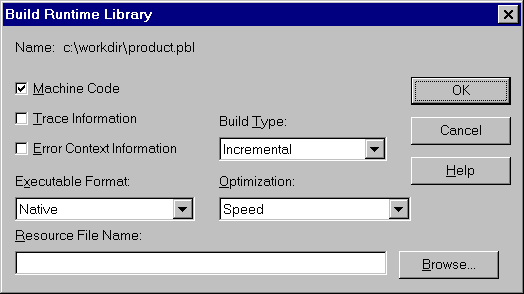
Select Open Server Executable to compile a server executable for a distributed application
Select Trace Information if you want to enable tracing your executable. If you compile your project in Pcode, you can trace execution by default. The trace output generated by PowerBuilder records Creation & destruction of objects and execution of scripts and functions.
Select Error Context Information if you want PowerBuilder to display context information (object, event, and script line number) for runtime errors.
Save the project and build the project by selecting Design/Build Project from the menu.
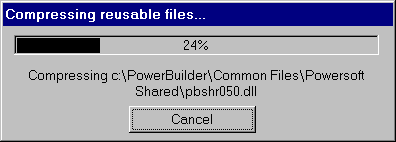
You will see the status of the project creation on the statusbar. When you see "Compiling" on the statusbar, it means, PowerBuilder is translating the pseudo code into C code. When you see "Generating" it means, PowerBuilder is compiling the generated C code and linking into executable. The second process takes about 90% of the creation process time. If you aren’t using a Penitum machine and generating machine code, allocate one full hour time for this process.
If you are using a version control system, after creating the executable, PowerBuilder will label all the objects with the label you specify. Someday later if you want to create an executable for a certain point, you can do so by restoring the objects from the version control system. You need to select "Design/Restore Libraries" in the project painter.