Distributing the application is the biggest headache of the project management. They need to create proper diskettes. As you know there are large files and small files. Some files are larger than one diskette after compression. You may need to write a program to create/modify registry entries at the target machine. You may need to go to each machine to configure other settings such as .INI files, adding to the path and so on. If the user wants to uninstall the program for any reason, he should be able to do it. To get Windows 95 logo, you need to provide uninstall program. So, you need to write a program to do that.
Powersoft understands the PowerBuilder developers problems and came up with "Install Builder" program. It comes with the Professional/Enterprise edition or you need to purchase Advanced PowerBuilder utilities program. With the Install Builder, your life is easy. When you deploy the application using the Install Builder, the user will see the same program setup that you saw while installing the PowerBuilder software itself. He can read the readme.txt file while installation is going on and, he can see all the graphics that you want to show with your program highlights. It also creates and uninstall program for you. It takes care of fitting the larger files into different diskettes, registry/.INI files setup and so on.
What you need to do in the Install Builder are:
 |
Set Install Captions, Background Colors, Bulletin Board Images | ||||||||||||
|
Select the destination Operating System path | ||||||||||||
|
Let Install Builder know about PowerBuilder/SQL AnyWhere/Deployment DLLs location | ||||||||||||
|
Define Components | ||||||||||||
|
Define the
following for each component
|
||||||||||||
|
Create Diskettes | ||||||||||||
|
Create Diskette Images |
Invoke the Install Builder program and select New from the menu. Whatever options you choose in the Install Builder for a project, you can save to a configuration file. When you want to use the Install Builder next time for the same project, you can just open that configuration file and do the changes that you want.
Specifying Captions
As soon as you specify the configuration file, Install Builder prompts you for the captions as shown in the following picture. You need to specify the caption you want to display at the time of installation. You can also specify the first image you want to display at the beginning of the installation. Select the background color using the RGB color selector. If you have designed any bulletin board, specify it here.

If you want to change this later, you can do so by selecting Options/INI Settings from the menu.
Specifying the Destination Operating System
As soon as you complete specifying the captions, Install Builder prompts you for the destination operating system as shown in the following picture:
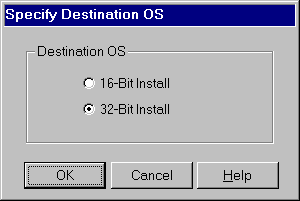
If you want to change this later, you can do so by selecting Options/Destination OS from the menu.
INI File Settings
Install Builder automatically detects the location of PowerBuilder directory, SQL Anywhere directory and the runtime DLLs directory.
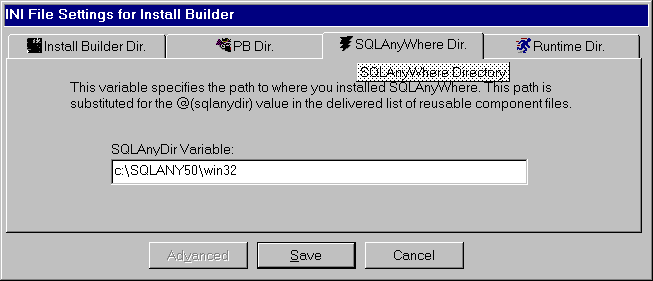
Make sure those are correct by selecting Options/INI File Settings from the menu.
Defining Components
Before you start doing anything, divide all the deployment files into logical components. For example, files that must to be installed, optional components. Do you remember seeing "Typical", "Compact" and "Custom" options, while installing PowerBuilder software on your machine. In case of "typical", the program installs files that are typically needed for any one. Users who don’t have much space on their hard disks and want to scarify some of facilities of the program, can specify "Compact". These users will get minimum files. Advanced users use the "Custom" option and they select the files they need and their target location.
Divide all the files from your application in the same way. Sometimes, "Typical" and "Compact" might have the same configuration. For example, unless you provide some video based training through the help file system, your first application "Product Management System" needs everything to be installed all the time.
By default Install Builder adds the first component for you. The first component would be "base" component. Write the description under the component description, say, "Executable & Database Files". There are four symbolic destination path variables are available. One is @Base, i.e., the path that user specifies at the time of installation. Other variable, @Windows contains the location of the windows directory. The other option @System, contains the location of the system directory under the windows directory. These three paths are available by default. As you keep adding components, you will get additional options in the "Destination Path" option. If you want to add these paths to the AUTOEXEC.BAT file, then turn on the "Add to Path" option.
What files will go under the base component? Select all the files that must be installed to run your application. These files include .EXE file, .DLL/.PBD files, .DB (database file) and .LOG file (database log file). Click on the "Select Files" icon from the toolbar and select all these files.
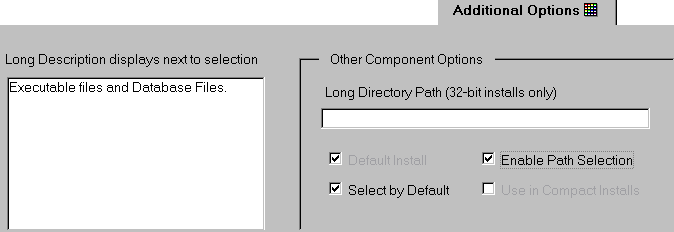
In the additional options tab page you can specify whether you want to allow the user selecting a different path or not. Base components are always installed in all types of installations. Specify the .INI file entries in the INI Settings tab page. To insert a new entry in the .INI tab page, invoke the popup menu with the right mouse button. If you want to copy the .INI entries from your existing file, you can do so by selecting Copy from the popup menu.

Similarly you can do for registry entries also. Copy all the ODBC related entries as shown in the following picture:
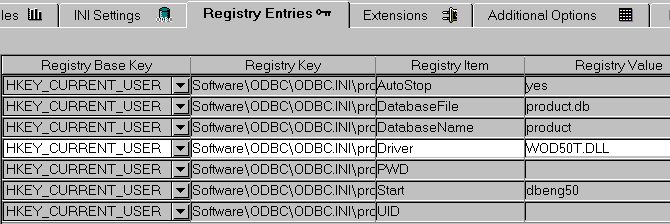
You can specify the action to be taken if the target file is already existing on the users machine.
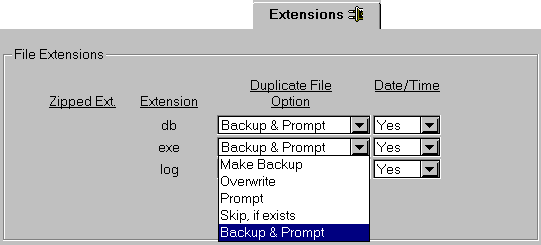
You can specify the billboard images in the billboard tab page. The images you specify will be displayed with equal time intervals. If this component takes 10 minutes and if you specify 5 images, then each images would be displayed for 2 minutes. If you have placed all the resource in a DLL file, you need to specify the resource ID.
Add the ODBC entries by selecting ODBC Entries from the Edit menu.
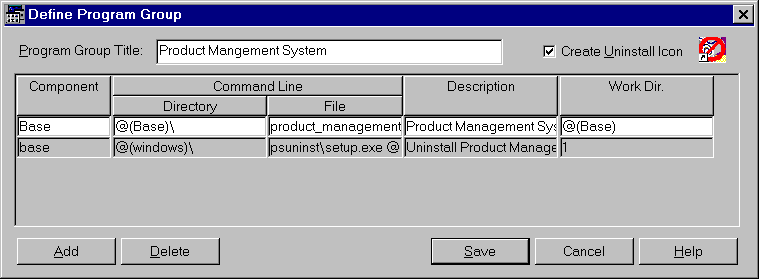
Define the program group entries by selecting "Actions/Define Program Group" option from the menu. In fact, Install Builder is capable of reading the project file and populate most of the values in this painter. If you want to do so, select "Actions/Read Project Object" from the menu.
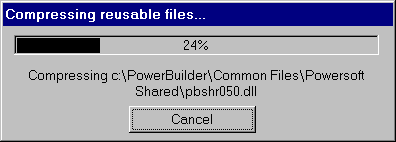
You can also define the reusable components. The reusable components represent the set of files which can be used in different installation processes, without having to re-define and compress them. The Re-usable components are available to all Configuration files. To deploy the reusable components, they should be available in the compressed form. So, select Actions/Define Reusable Components from the menu. Install Builder comes with a pre-defined reusable components. It includes all the files, say, driver to ORACLE, Informix, Sybase, SQ AnyWhere and so on. So, delete unnecessary stuff and save it. Then compress all those files by clicking on the "Compress" icon and return to the Install Builder.
Select Actions/Create Diskette Images from the menu. Install Builder prompts you for the reusable components you want to deploy. Select appropriate options and click Create button.
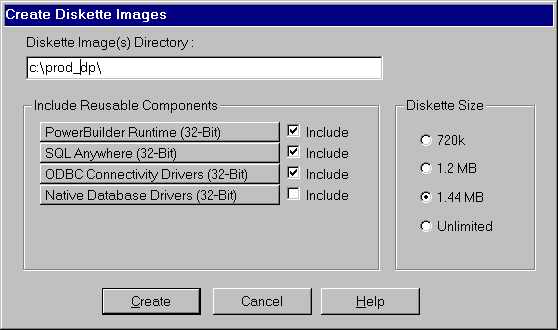
Once the process is complete, you can see directories named disk1, disk2 and so on, under the directory you specified. These directories contain compressed files. You can create diskettes by selecting "Actions/Create Diskettes" from the menu and distribute to users.