If you want to print a single DataWindow as it is, dw_product, you don’t have to write any code. PFC automatically prints the current DataWindow that is in focus. If you are using multiple DataWindows to display the data and using a hidden DataWindow/ DataStore to print the report, you need to take care of the whole code. PFC print service gives one more functionality, that is printing the selected rows only which is not available in a typical PowerBuilder application. To allow the user printing only selected rows, you need to turn on the multiple row selection service.
If you wish to use print preview service, you need to turn on the service. Write the following in the pfc_PostOpen event of the w_product_master window:
dw_product.of_SetPrintPreview( TRUE )
At run-time when the user selects File/Print Preview from the menu, PFC turns the DataWindow in the print preview mode. You need to select View/Ruler from the menu, if you wish to see the rulers.
PFC
Print Preview, Zoom Service.
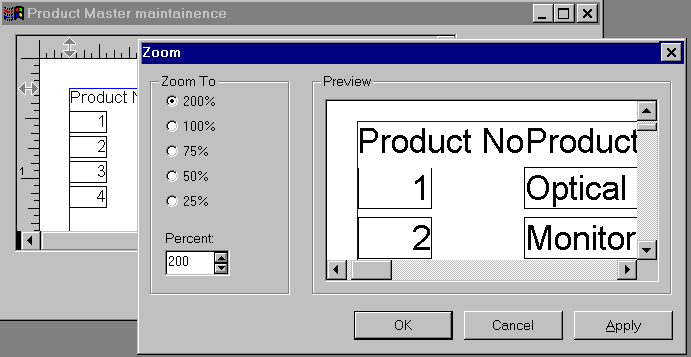
PFC has the functionality to display the DataWindow in the zoom mode when the DataWindow is in the print preview mode. However, you need to call the functionality. Write the following code in the clicked event of the Print Preview Zoom under the File option. Remember, we have defined "Print Preview Zoom" menu option, it wasn’t existing in the PFC menu.
of_SendMessage( "pfc_zoom" )
When the user zooms the DataWindow, it displays in a different window instead of zooming in the same window. This behavior is good when you have multiple DataWindows on display and want to use one DataWindow for printing.