
| Home | Previous Lesson: Team Computing, Version Control Next Lesson: Checking-Out a PowerBuilder Object |
When a team of developers are working on a project, we have to make sure the changes shouldn't be overwritten by other developers. When only one user is working on a project, he has only one library. For example, "product.pbl". In some cases, you may have more than one library for the same project. For example, say, you have a class library and you are inheriting objects from the class library objects. That means you have two libraries for the project, i.e., "product.pbl" and "class-library1.pbl".
|
Only PowerBuilder Enterprise/Professional edition supports team development. |
In the team-development setup, we have the main libraries "product.pbl" and "class_library1.pbl" on the network, and each developer in the team has a working library on his machine.
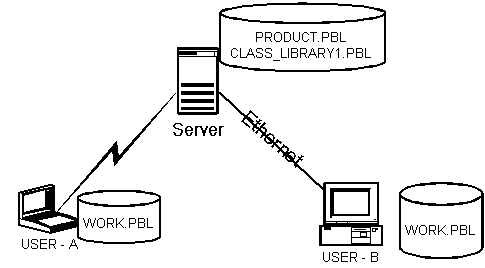
When you want to change an object, you need to Check-Out the object into the working library "work.pbl"; Once you do the changes, you need to Check-In the object into the public library "product.pbl".
After you Check-Out the object into the working library and after changes, you may want to test the object functionality before Check-In to the public library "product.pbl". To test the object functionality from the working library "work.pbl", you need to few more things.
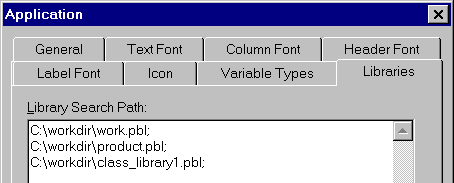
Each developer has to export the application object from the public library "product.pbl" and create the application object in the working library "work.pbl" by importing from the exported file. Once you create the application object in the "work.pbl", make "work.pbl" as the first entry in the "Library List" and make "product.pbl" and "class_library1.pbl" after that as shown in the following picture.
 |
PowerBuilder supports Exporting/Importing a PowerBuilder Object in all types of PowerBuilder packages (DeskTop, Professional, Enterprise). |
As you know, PowerBuilder stores all the PowerBuilder object in the PowerBuilder library. However, PowerBuilder allows you to export the PowerBuilder object into a ASCII file. You can also import the exported file back to the PowerBuilder library. If you are an expert, and if you need, you can also edit the exported file. Exporting the file is useful when you want to e-mail a specific object from a PowerBuilder library to other user. The receiver can create the object in his library by importing the file. If this facility isn't there, you need to mail whole PowerBuilder library, which is waste of resources. To export the application object, you need to select the application in the library painter and select "Entry/Export" from the menu. PowerBuilder automatically suggests you the export file name with proper extension. If you export the "product_management_system" application object, it looks like:
$PBExportHeader$product_management_system.sra
forward
global uo_transaction sqlca
global dynamicdescriptionarea sqlda
global dynamicstagingarea sqlsa
global error error
global message message
end forward
global type product_management_system from application
end type
global product_management_system product_management_system
on product_management_system.create
appname = "product_management_system"
message = create message
sqlca = create uo_transaction
sqlda = create dynamicdescriptionarea
sqlsa = create dynamicstagingarea
error = create error
end on
on product_management_system.destroy
destroy( sqlca )
destroy( sqlda )
destroy( sqlsa )
destroy( error )
destroy( message )
end on
event open;open ( w_login )
Idle( 300 )
open( w_mdi_frame )
//open(w_dde_server)
end event
event close;Int l_ReturnStatus, l_FileHandle
l_ReturnStatus = SetProfileString( "c:\workdir\product.ini" , &
"product app" , "DBMS", SQLCA.DBMS )
if l_ReturnStatus <> 1 THEN
l_FileHandle = FileOpen( "c:\workdir\product.ini", LineMode!, Write!, LockWrite!, Replace! )
FileClose( l_FileHandle )
SetProfileString( "c:\workdir\product.ini" , &
"product app" , "DBMS", SQLCA.DBMS )
End If
SetProfileString( "c:\workdir\product.ini" ,&
"product app" , "Database", SQLCA.Database )
SetProfileString( "c:\workdir\product.ini" , &
"product app" , "Name", SQLCA.UserID )
end event
event idle;w_mdi_frame.WindowState = Minimized!
end event
event systemerror;open( w_error )
end event
|
You can invoke the notepad from within the PowerBuilder by pressing Shift + F6 keys. |
From the above listing, you can observe the way PowerBuilder is declaring the global objects such as SQLCA.
global uo_transaction sqlca
You can also see the way PowerBuilder is creating the global object after the declaration.
sqlca = create uo_transaction
In the above example, PowerBuilder is creating SQLCA from uo_transaction which we created in the User Objects session.
There is a restriction on importing an object. That is, you can't import an existing object in to a different library that is in the application's Library List. Let me explain it with an example. For example, we have a window "w_product_master" in the "product.pbl". The application Library List contains the following three libraries in the same order given below.
"work.pbl", "product.pbl" and "class_library1.pbl"
When there is only one library in the Library List, and if you import an existing object, PowerBuilder overwrites the existing object with the new definition from the importing file code. When multiple libraries are in the Library List, PowerBuilder prompts you for the library name in which you want to import the object. If you select "product.pbl", PowerBuilder overwrites the existing "w_product_master" without even prompting. Say, you selected "work.pbl" ( say, with an idea to keep two versions of the same objects in the same library ), the import will fail with the following error:
Library: c:\workdir\work.pbl
Object: w_product_master
Object Variable Declarations
(0001): Information C0146: The identifier 'w_product_master' conflicts with an existing global variable with this name. The new definition of ' w_product_master' will take precedence and the prior value will be ignored until this version of 'w_product_master' goes out of scope
|
The solution to this problem is that, invoke the existing object (from product.pbl, in the example) and save it with a new name, say, w_product_master1. Delete the "w_product_master". Now, import the object. It would be successful. Now, open the "w_product_master1" and save it as "w_product_master" and delete "w_product_master1" window. |
Coming back to the "Library List", when PowerBuilder needs to refer/read a PowerBuilder object, it looks in the PowerBuilder libraries in the order the library names are specified in the "Library List" property. Since the "work.pbl" is the first entry, PowerBuilder reads the object from the "work.pbl" instead of reading from "product.pbl".
| Home | Previous Lesson: Team Computing, Version Control Next Lesson: Checking-Out a PowerBuilder Object |