Completion of TreeView control exercises might have given you a clear understanding of TreeView control programming. If you have any problem in completing TreeView control exercises, you can find the answers in the PBL given on the TreeView control exercises page.
ListView is another Windows’95 control introduced with PowerBuilder 5.0. Unlike the TreeView control where you can display the data only in the hierarchical format, ListView allows you to display data in a wide variety of formats, such as large icons, small icons, listview and report view.
Even though ListView and TreeView controls are different, they are similar in many ways. Understanding ListView control would be easy to understand if viewed as a TreeView control with a difference. Like a TreeView item, a ListView item can have pictures associated with it. You can assign three pictures to a ListView item, i.e. a picture for 'large view', a picture for 'small view' and a picture to indicate the status. You can control the width and height of large view picture and small view picture using "LargePictureHeight", "LargePictureWidth" "SmallPictureHeight" and "SmallPictureWidth" properties.
Before we go any further with ListView control programming, let’s see how the ListView control looks in different views. The following pictures are taken from the example program that comes with PowerBuilder. Click here to see the animated GIF file.
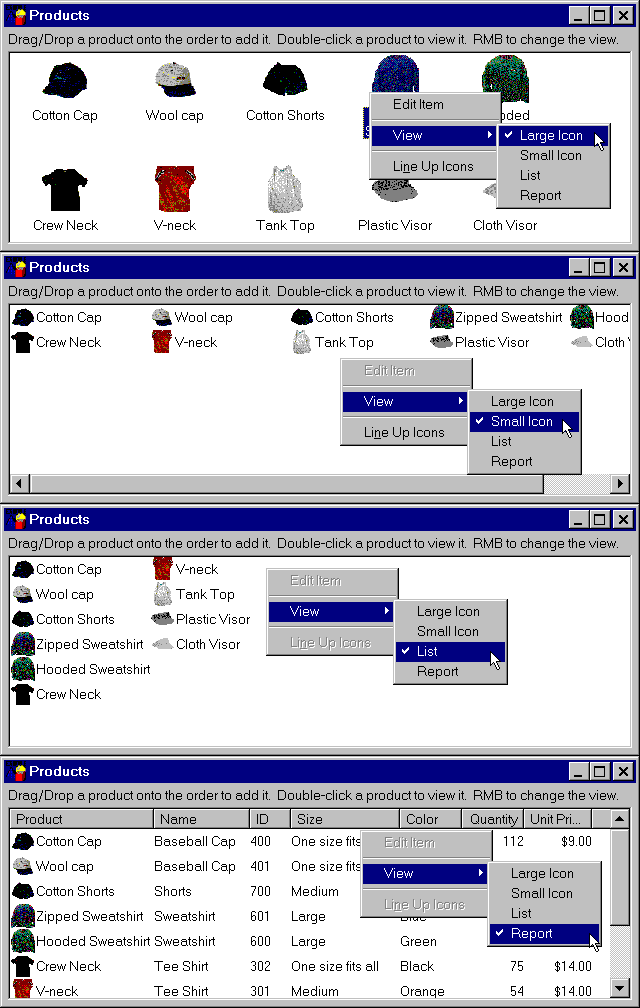

ListView
Control - Large Icon View

ListView
Control - Small Icon View

ListView
Control - listview
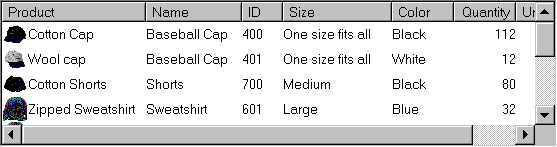
ListView
Control - Report View
Unlike TreeView control, ListView control allows you to specify ListView items in it’s property dialog box (TreeView items are added through programming only). At the same time, you can also assign pictures for each item. However, if you want to display the ListView in report view, you need to add rows and columns through script only.
It is a good idea to determine the columns you need and add those columns to the ListView control before you start adding the data. To add a column, you can use either AddColumn() or InsertColumn() functions. AddColumn() takes three arguments, the label for the column, the label alignment (left, right, center) and the width of the column. For example, the following code adds a column with "Products" as its label.
lv_prod.AddColumn("Product", Left!, 525)
The next step after adding columns would be to add data (Don’t confuse with the "Data" attribute) to the ListView control. Say, you want to display the product details in the ListView control in the report format, then you need to retrieve data into a DataWindow and from it add each product to the ListView control. That means, you need to declare a variable of type ListViewItem and set its label to whatever is required and then add that record to the ListView control by calling AddItem() function. The following code is taken from "ue_refresh_items" event in the w_product window located in PFEXAMW3.PBL.
Integer  li_Rows, li_Cnt
String	ls_Desc, ls_Name, ls_Id, ls_Size, ls_Color
String ls_Qty, ls_Price
Double	ldb_Price
ListViewItem    llvi_Item
SetPointer(Hourglass!)
lv_prod.DeleteItems()
// Retrieve data into the datastore
ids_Products.SetTransObject(SQLCA)
li_Rows = ids_Products.Retrieve()
// Get all rows from the datastore and add
// as items to the listview
For li_Cnt = 1 To li_Rows
    llvi_Item.PictureIndex = &
        lv_prod.AddLargePicture(ids_Products.&
        Object.picture_name[li_Cnt])
    lv_prod.AddSmallPicture(ids_Products.&
        Object.picture_name[li_Cnt])
   // Save the picture name in the data attribute so it
   // can be referenced when the item is dropped.
   llvi_Item.Data = ids_Products.Object.picture_name[li_Cnt]
   ls_Desc = ids_Products.Object.description[li_Cnt]
   ls_Name = ids_Products.Object.name[li_Cnt]
   ls_Id = String(ids_Products.Object.id[li_Cnt])
   ls_Size = ids_Products.Object.prod_size[li_Cnt]
   ls_Color = ids_Products.Object.color[li_Cnt]
   ls_Qty = String(ids_Products.Object.quantity[li_Cnt])
   ldb_Price = ids_Products.Object.unit_price[li_Cnt]
   ls_Price = String(ldb_Price, "$#0.00")
   llvi_Item.Label = ls_Desc + "~t" + ls_Name + &
          "~t" + ls_Id + "~t" + ls_Size + "~t" + &
          ls_Color + "~t" + ls_Qty + "~t" + ls_Price
   lv_prod.AddItem(llvi_Item)
Next
In the above code, we declared a variable llvi_item of type ListViewItem. Then we deleted all the items in the ListView control. we are then retrieving data from the DataWindow/ DataStore and adding each row to the ListView control. We are populating various variables from the DataWindow/ DataStore and setting the label of the ListViewItem. Observe that each column value is separated by a tab. Finally we are calling AddItem() function to add that row to the ListView control. ListView control parses the label and displays the label under correct column (column values are separated by tabs).
However, writing code just like the one above will not display the ListView control in the report format automatically. You need to change the ListView control’s display mode by setting the "View" attribute. For ex:
lv_prod.View = ListViewReport!
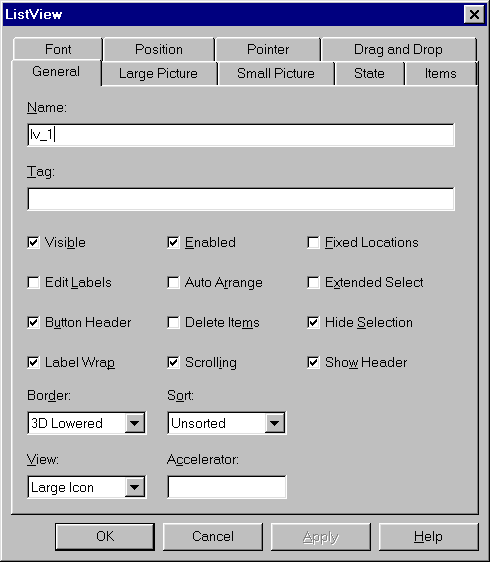
ListView
Control Properties Dialog box
Like the ListBox control, you can allow the user to select more than one item using Shift/Ctrl keys by setting "ExtendedSelect" to TRUE. At run-time, you can find the total number of selected items by calling TotalSelected() function. At any time, if you need to hide the column headings, you need to set "ShowHeader" to FALSE. By setting the "LabelWrap" property to TRUE/FALSE, you can control if the label should wrap when the label is larger than the width of the picture. If you set the "AutoArrange" property to True, PowerBuilder automatically arranges the icons when the user drags an icon and moves it to another location or resizes the ListView control. If you wish, you can stop the user from dragging icons from one place to another by setting the "Fixed Locations" to TRUE. The FindItem() for the ListView control TreeView control's FindItem() function. This is an overloaded function and you can find items either by label or in relation to a specific location. Using the second format, you can find the next selected item in all directions (up, down, left, right) as well as in the whole ListView.
Exercises
By studying the following references create a window with a ListView control and populate all items from product_master table into the ListView. User should be able to see the ListView in "Report View" also. Study those referenced and write the code. DO NOT cut and paste the code.
References
"w_add_sales_order" window located in pbexamw1.pbl. The Window can be seen by running the example application and by double-clicking on the "Sales Order ListView" under the "Window Controls" category.