Programming Tab control
Tab control is another Window's 95 control introduced with version 5.0. Using this control you can create diary like user interface. Tab control user interface in PowerBuilder was never heard of prior to version 3.0. From version 3.0 developers started developing tab controls using user objects and found that developing tab control was not that easy and also would not be that flexible.
Tab control is a container for the tab pages. Initially, when you place the tab control on the window/user object, you will see one tab page available by default. Logically, you can divide the tab control in two areas, one, tab area (the top area of the tab control where tabs are displayed at design time) and the other is the tab page area. Clicking on the tab page area will prompt you for the tab page properties. Clicking on the tab area irrespective of the displayed tab page, PowerBuilder displays the tab control's property dialog box.
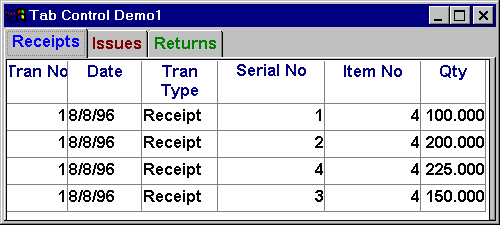
Tab
Control Using a Single Dw Control for all Tab
Pages
To learn about tab control & tab page properties, please refer to 'Tab Control' in the 'Window Painter' section.
Using a common control for all tab pages
You may come across a situation where you want to use a single control say a DataWindow control for all tab pages and want to filter that DataWindow depending on the tab page selection. For example, say you want to create a tab control with three tab pages, "Receipts", "Issues", "Returns". You may want to use a single DataWindow control and retrieve all the transactions and filter transactions depending on the selected tab page.
What you could do in this situation is you can place a tab control on the window. Place a DataWindow control somewhere on the window (make sure you don't place the DataWindow control directly over the tab control). Then either you can pull the DataWindow control onto the tab control and set 'BringToTop' option from it's popup menu or you can do that at run-time through programming.
The above sequence is very important. If you want to refer to the DataWindow "dw_1" from window's open event, you can refer as:
dw_1.SetTransObject( SQLCA )
The thumb rule you need to understand here is that, if you place a control on a tab page directly that control becomes part of that tab page. For ex, if you place dw_1 on the "Receipts" tab page directly and want to set it's transaction object in the window's open event, you need to code like:
tab_1.tabpage_receipts.dw_1.SetTransObject( SQLCA )
The above reference to the DataWindow is similar to referring to an object in a custom user object. You can refer to the DataWindow directly from tabpage_receipts tab page, but not from other tab pages. For example,
dw_1.SetTransObject( SQLCA )
The above statement is valid if you are writing in any event for the tab page 'tabpage_receipts'. However, if you write the same code in 'tabpage_issues', you get compilation error.
Insert two tab pages in the tab control as shown in the above picture (One tab page is created by default for you). Specify 'R', 'I' and 'T' as tag values respectively. We will be using these tag values as the retrieval arguments for the DataWindow to retrieve transactions from the database. Write the following code in the 'SelectionChanged' event of the tab control 'tab_1'.
String ls_TranType
ls_TranType = This.Control[
NewIndex ].Tag
Parent.Trigger
Event ue_filter_trans( ls_TranType )
The index of the selected tab page is passed as an argument to the 'SelectionChanged' event. Using that index number, we are reading the tag value of the selected tab page and passing that to the event 'ue_filter_trans' as an argument. When you compile the code you get error since 'ue_filter_trans' event is not yet defined. Just comment the last line and define 'ue_filter_trans' event at the window level. Define a string argument 'as_tran_type'. Now, uncomment the last line and compile it.
As you may recall, window has an array property named 'Control'. All the controls that you place on the window is listed in this property. Similarly, tab control also has 'control' property. It contains all the tab pages that you paint at design time. You can observe in the second line we are referring to 'control' property.
dw_trans.SetFilter( "tran_type = " + '"' + upper( &
		as_tran_type ) + '"' )
dw_trans.Filter()
Return (dw_trans.RowCount() - dw_trans.FilteredCount())
Write the above code to the 'ue_filter_trans' event. I am sure you know what the above code does. In the window opening event, make sure to set the transaction object to the DataWindow control dw_1 and retrieve the data into it.
 Save
this window as 'w_tab_demo1' and open this window
after the w_login window in the application's
open event and run the application or download
the application by clicking on the button and see
it in action. If you are not downloading code,
then don't forget creating a DataWindow for the
trans table and assigning that DataWindow object
to the DataWindow control before you run the
application.
Save
this window as 'w_tab_demo1' and open this window
after the w_login window in the application's
open event and run the application or download
the application by clicking on the button and see
it in action. If you are not downloading code,
then don't forget creating a DataWindow for the
trans table and assigning that DataWindow object
to the DataWindow control before you run the
application.
Using independent controls for each tab page
In the previous example we used same DataWindow control for all tab pages. In this section let's learn how to use independent DataWindow controls on each tab page.
Create another window 'w_tab_demo2' and add a new tab control to the window. Change the text of the first tab from 'none' to 'Receipts. Name this tab page as 'tabpage_receipts'. Place a DataWindow control on the 'tabpage_receipts'. Name the DataWindow control as 'dw_receitps'. Now, insert a new tab page and name it as 'tabpage_issues'. Change its text to 'Issues'. Place a DataWindow control on the 'tabpage_issues' and name the DataWindow control as 'dw_issues'. Similarly insert one more tab page for 'Returns'.
We are using three DataWindow controls but, we haven't created/assigned DataWindow objects to these DataWindow controls. Paint a DataWindow to retrieve all the receipt transactions and assign that DataWindow object to the 'dw_receipts' DataWindow. That means, the data source for the DataWindow would be:
SELECT * FROM trans WHERE tran_type = 'R'
Similarly paint DataWindow objects for other DataWindow controls and assign them to the appropriate DataWindow controls. Then write the following code to the 'SelectionChanged' event of the 'tab_1' tab control.
DataWindow ldw1
Transaction ltr1
ldw1 = Tab_1.Control[ NewIndex ].Control[1]
If ( ldw1.GetTrans( ltr1 ) ) <> 1 &
        Then ldw1.SetTransObject( SQLCA )
return ldw1.Retrieve()
You can observe that, in the third line we are using 'Control[]' twice. The first 'control[]' has the list of all the tab pages in the tab control. The second 'Control[]' has the list of all controls that you placed on that tab page. As you know, we placed only one control i.e, DataWindow control on the tab page, That's why, I hard coded 'Control[1]'. In real-world projects, you need to check whether that control is a DataWindow control or not and retrieve it only if it is a DataWindow control. The following revised code does that.
UserObject luo1
DataWindow ldw1
Transaction ltr1
Integer li_Counter, li_TotControls
For li_Counter = 1 to li_TotControls
    luo1 = Tab_1.Control[ NewIndex ].Control[ li_Counter]
   If luo1.TypeOf() = DataWindow! Then ldw1 = luo1
      If ( ldw1.GetTrans( ltr1 ) ) <> 1 Then &
               ldw1.SetTransObject( SQLCA )
      return ldw1.Retrieve()
   End If
Next
Return 0
You can observe one more technique from the code fragments above. That is, we are checking whether the DataWindow has a transaction object set to it or not. If not, then only we are calling the SetTransObject() function.
Now, to really understand the difference between 'Using a single control on all tab pages' and this method, you need to print the codes and compare them. In the former, we are referring to the DataWindow control directly like any other control on the window. However, we need to go an extra mile to find the correct DataWindow control in the tab page.
Creating Tab Pages Using Custom User Objects
In the previous method we placed standard window controls on each tab page. In this method, you will learn how to use custom visual user objects on the tab pages. Coding in this method is more complex compared to previous methods. The first one is easy and straight forward. The second method needs more coding. To use this method, you need to have better understanding of PowerBuilder objects, otherwise, the program will end up have heavy run-time errors, such as NULL object references and assigning objects to the wrong variable types and so on.
In this method, what I would like you to do is, first create a custom visual user object and then the window. Invoke the user object painter and select 'New' and select "Custom" from the "Visual" category. Place a DataWindow control on the work area and save it as 'uo_trans_for_tab_page_demo'. I know we haven't assigned any DataWindow object for that. Don't worry, we will be doing that at run-time.
Create a window 'w_tab_demo3' and place a tab control 'tab-1' on the window. Turn off Visual & Enabled properties for the first tab page 'tabpage_1'. Now, click on the tab text display area and invoke the popup menu. Select 'Insert UserObject' and select 'uo_trans_for_tab_page_demo'. Name this tab page as 'tabpage_issues'. Similarly create one more for 'returns'. I would like to do something different for the 'receipts'. This will give you clear understanding of tab control programming. This time instead of selecting 'Insert User Object', select 'Insert TabPage'. Name it as 'tabpage_receipts'. Now, Select 'Controls/User Object' from the menu and 'uo_trans_for_tab_page_demo' and place it on the 'tabpage_receipts' tab page.
In summary, we are not using the default tab page. For 'Issues' and 'Returns' we are creating tab pages using user objects. For 'Receipts' we are adding a regular tab page and placing the user object on the tab page. Now, let's see how to program tab control to retrieve data into these DataWindows. Write the following code to the 'SelectionChanged' event of the tab control 'tab_1'.
DataWindow ldw1
UserObject luo1
Integer li_ObjectCount, li_Counter
Integer li_Counter1, li_ObjectCount1
li_ObjectCount = UpperBound( &
        This.Control[ NewIndex ].Control[] )
For li_Counter = 1 to li_ObjectCount
   If This.Control[ NewIndex ].&
      Control[li_Counter].TypeOf() = UserObject! Then
      luo1 = This.Control[ NewIndex ].Control[li_Counter]
      li_ObjectCount1 = UpperBound( luo1.Control[])
      For li_Counter1 = 1 to li_ObjectCount1
          If luo1.Control[ li_Counter1 ].&
             TypeOf() = DataWindow! Then
             ldw1 = luo1.Control[li_Counter]
             Exit
          End If
      Next
      If NOT IsValid( ldw1 ) Then Return -1
    ElseIf This.Control[ NewIndex ].&
          Control[li_Counter].TypeOf() = DataWindow! Then
       ldw1 = This.Control[ NewIndex ].Control[li_Counter]
       Exit
    End If
Next
If Not IsValid( ldw1 ) Then Return -1
If This.Control[ NewIndex ].ClassName() = &
	"tabpage_receipts" Then
   ldw1.DataObject = "d_receipts_for_tabpage_demo"
ElseIf This.Control[ NewIndex ].ClassName() = &
	"tabpage_issues" Then
   ldw1.DataObject = "d_issues_for_tabpage_demo"
ElseIf This.Control[ NewIndex ].ClassName() = &
	"tabpage_returns" Then
   ldw1.DataObject = "d_returns_for_tabpage_demo"
End If
ldw1.SetTransObject( SQLCA )
ldw1.Retrieve()
After declaring the variables, we are finding the number of objects that are residing on the selected tab page. Then in a loop we are checking object type for each object on the tab page. Remember that we added the tab page for 'Issues' and 'Returns' by inserting the user object. In this case, 'This.Control[ NewIndex ]' refers to the tab page say, tabpage_issues. Since the tab page itself is a user object, it is referring to 'uo_trans_for_tab_page_demo'. 'This.Control[ NewIndex ].Control[li_Counter]' refers to the DataWindow control inside 'uo_trans_for_tab_page_demo'.
However, the above code is not correct for the 'receipts' tab page. In this case, 'This.Control[ NewIndex ]' refers to the tab page 'tabpage_receipts' itself. 'This.Control[ NewIndex ].Control[li_Counter]' refers to the user object 'uo_1' (of type 'uo_trans_for_tab_page_demo') that we placed on the tab page. To refer to the DataWindow control inside the 'uo_trans_for_tab_page_demo' you need to refer to another set of 'Control[]' property. This is being done in the inner FOR loop.
For practice read this topic couple of times more. See the code in action. Then do the same without looking at the code. If you can do it (without cut/paste method), you are ready to program tab controls in real world apps.
Creating Tab Pages Dynamically
Some times, you may not know the number of tab pages that you need to display at run-time. You need to dynamically create tab pages on the fly at run-time and display it to the user. Another reason you may prefer dynamic tab pages is if there are too many tab pages on the tab control, for it takes more time to load the window. Not every user will be using all the tab pages. So, it is a good idea to create only those pages that are needed at run-time, by this, window will be opened faster and also we don't open tab pages unnecessarily.
As you may recall, all the tab pages are listed in the Control[] property of the tab control. We are referring to this property all the time. However, in version 5.0, PowerBuilder DOES NOT populate the dynamic tab page information in the control[] property. Because of this, we need to program tab control in a different way. That is, we need to declare an array of user object variable and refer to those objects in various events & functions.
 In version 6.0, PowerBuilder
populates the tab control's Control[] property with the dynamically
created pages information.
In version 6.0, PowerBuilder
populates the tab control's Control[] property with the dynamically
created pages information.
To create tab pages dynamically, you need to understand OpenTab() and OpenTabWithParm() functions. I will explain these functions as we go. First, create a window 'w_tab_demo4' and place a tab control. As we are going to create tab pages dynamically, we do not need the default tab page. Deleting this tab page is a little tricky. If you select the tab page and hit the delete button, whole tab control is removed from the window. What you could do is, select the default tab page, invoke the popup menu for the tab page (not for the tab control) and select 'Cut' option.
Declare the following instance variables in the window.
uo_trans_for_tab_page_demo
iuo[3]
String is_DwObjects[3]
The reason we are declaring three subscripts is, we need to create three tab pages, receipts, issues and returns.
Write the following code to the window open event.
iuo[1] = Create
uo_trans_for_tab_page_demo
iuo[2] = Create
uo_trans_for_tab_page_demo
iuo[3] = Create
uo_trans_for_tab_page_demo
is_DwObjects[1] =
"d_receipts_for_tabpage_demo"
is_DwObjects[2] =
"d_issues_for_tabpage_demo"
is_DwObjects[3] =
"d_returns_for_tabpage_demo"
tab_1.OpenTab(
iuo[1], 0 )
iuo[1].Text = "Receipts"
tab_1.OpenTab(
iuo[2], 0 )
iuo[2].Text = "Issues"
tab_1.OpenTab(
iuo[3], 0 )
iuo[3].Text =
"Returns"
In the above code, first we are creating instances of user objects and storing them in the array. In this example, we are using the same user object in all tab pages, however, you can use different user objects. Similarly, we are storing the DataWindow objects that needs to be assigned. Later we are calling OpenTab() function. This function opens the user object as the tab page and inserts before the specified index. We are specifying zero, which means, append this tab page to the existing tab page. That means, the first tab page we open will become the first one. After opening each tab page, we are setting the tab page text by referring to the user object. If PowerBuilder populates tab control's control[] property with dynamic tab page information, we can set the text in the following way.
Tab_1.Control[1].Text = "Receipts"
If you write the above code instead of writing iuo[1].Text = "Receipts", you will be able to compile the code successfully. However, you will end up with run-time error.
See, we haven't painted any thing on the tab control at design time. Now, write the following code to the tab control's SelectionChanged event.
DataWindow ldw1
UserObject luo1
Integer li_ObjectCount, li_Counter
Transaction lTr1
luo1 = iuo[ NewIndex ]
li_ObjectCount = UpperBound( luo1.Control[] )
For li_Counter = 1 to li_ObjectCount
   If luo1.Control[ li_Counter ].TypeOf() = &
           DataWindow! Then
      ldw1 = luo1.Control[li_Counter]
      Exit
   End If
Next
If Not IsValid( ldw1 ) Then Return -1
//Set transaction object only if it is not already set.
If ldw1.GetTrans( lTr1 ) <> 1 Then
   ldw1.DataObject = is_DWObjects[ NewIndex ]
   ldw1.SetTransObject( SQLCA )
End If
ldw1.Retrieve()
We are storing the reference to the selected tab page's DataWindow control. Then we are setting the DataWindow object and transaction object if it is not already assigned. Then we are retrieving data into the DataWindow control.
Before we end this topic, one quick point. If you see the tab control's property dialog box, you will find a property 'Selected Tab'. As soon as PowerBuilder creates the tab control, PowerBuilder selects the tab that you specify for this property. That means, SelectionChanged event is fired and this index number is passed to the event.
 |
Remember one thumb
rule: Only CUSTOM VISUAL USER OBJECTS can be opened dynamically. |
Tab Control User Objects
If you understood previous topics pretty well this topic is easy. Let us create a standard visual user object of type tab. Invoke user object painter, select 'New', and select 'Standard' from the 'Visual' category. Now, select 'Tab' from the popup window. Save this as 'uo_tab'.
Create a new window 'w_tab_demo5' and place the user object you created in the previous step on the window. Copy and paste the code you wrote for the window open event from the previous topic. Similarly do for the tab control's SelectionChanged event also.
What we are doing here is exactly same as what we did in the previous topic i.e. opening tab pages dynamically. One thing you need to observe is, when you are using tab control user object, you can insert neither regular tab pages nor the user object tab pages at design time. You have to do it at run-time only.