| Home | Previous Lesson: Introduction to Script Painter Next Lesson: Scripting Basics |
Take COBOL as an example for procedural programming language. There are four different divisions to the source code: Identification, Environment, Data and Procedure. Each of these sections is executed in order, line-by-line, until the end of the source code. The result is pre-defined for a given entry and all stages must be completed before a result is produced.
PowerBuilder is based on object orientation concepts and handles the problem in a different way.
Switching from COBOL/C, FoxBase/Dbase for DOS environment to PowerBuilder environment may result in a cultural shock. In PowerBuilder environment, you write code for events that are triggered by the system whenever an event occurs- this is called Event Driven Programming. Simple examples would be opening a window; it triggers the Open event. Clicking on an object triggers Clicked event for that object.
When using Event Driven Programming, you provide scripts for events to which you want the object to respond. When you release the object into the programming soup, it floats around waiting for an event message to be forwarded to it and then runs the appropriate script, when it comes across the event.
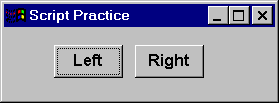
For the purpose of understanding, let's create a window with two CommandButtons cb_left, cb_right. Save the window as w_script_practice.
If you remember, we wrote a single line of code in the Application's open event. We need to change that. Open the application painter:
Open (w_script_practice) |
Now, run the application by clicking on the  icon or press Ctrl + R keys. Answer Yes for the 'Save Changes?' prompt. Click on the buttons, anything happening? Nothing! That is because, we didn't write scripts to the clicked event.
If for an object, script doesn't exist for an event, nothing happens when that event occurs and the object goes back into waiting for the next event message.
This is known as 'defensive' programming, since you're relying on the user to select the next course of action, rather than guiding them through a strict series of actions. On the other hand, you are allowing the user to take control and choose what happens after what and in what order, rather than having them to stick to a rigid and predefined order of events.
Go back to the Window painter. Invoke script editor for cb_left CommandButton and write the following code.
// Object: cb_left
// Event:  Clicked
MessageBox( "Message Title", "You clicked me.")
Run the application again and now click on the cb_left button and see what happens.
Every object in PowerBuilder has a set of events. Each object can have different events. Some may have only couple of events and others might have a list of events. You can browse the events for each object from the object browser by clicking on  icon.
icon.

Let's see events for the CommandButton. Click on the System tab page and select CommandButton. On the right side, double click on the Events option.
Apart from the events fired by the user's interaction with the basic PowerBuilder objects, we can write the code for few other internal or system events. For example, whenever you print a report, PrintStart event for the DataWindow is fired and the RetrieveRow event occurs whenever PowerBuilder retrieves a row from the database and RetrieveEnd event occurs whenever PowerBuilder completes retrieving data from the database.
Here, the entire code is not as a single large listing. Each script is small and compact; hence, it is easier to test and debug the PowerBuilder application's code rather than an equivalent example based in a procedural language like COBOL.
| Home | Previous Lesson: Introduction to Script Painter Next Lesson: Scripting Basics |