Introduction to PowerBuilder
CHOOSE CASE...END CHOOSE
An IF statement causes a branch in the flow of a program's execution. You can use multiple IF statements, as in the previous section, to perform a multi-way branch. However, this is not always the best solution, especially when all of the branches depend on the value of a single variable. In this case, it is wasteful to repeatedly check the value of the same variable in multiple IF statements.
CHOOSE CASE /*expression*/
	CASE /*item*/
		/*statementblock*/
	CASE ELSE
		/*statementblock*/
END CHOOSE |
PowerScript provides the more efficient CHOOSE CASE statement to handle exactly this situation. The CHOOSE CASE is followed by an expression and various locations in the block of code are labeled with CASE keyword followed by a value. When a CHOOSE CASE executes, it computes the value of the expression and then looks for a CASE label that matches that value. If it finds one, it starts executing the block of code (until it finds next CASE or END CHOOSE) at the first statement followed by CASE label. If it does not find a CASE label with a matching value, it starts executing at the first statement following a special case CASE ELSE label. Or, if there is no CASE ELSE label, it skips the block of code altogether.
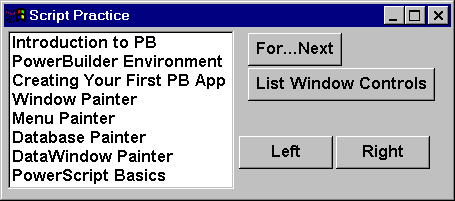
Place a CommandButton and name it as cb_list_window_controls as shown in the following picture and write the following code.
// Object: cb_list_window_controls
// Event: Clicked
Integer li_TotalControls, li_Counter
WindowObject lwo_Control
li_TotalControls = UpperBound(w_script_practice.Control[])
For li_Counter = 1 to li_TotalControls STEP 1
    lwo_Control = w_script_practice.Control[li_Counter]
    CHOOSE CASE lwo_Control.TypeOf()
           CASE CommandButton!
                MessageBox("CommandButton", &
                           lwo_Control.ClassName())
           CASE ListBox!
              MessageBox("ListBox",lwo_Control.ClassName())
           CASE ELSE
                MessageBox("Others","Other Window Control")
    END CHOOSE
Next |
Control[]array is the property of Window object which contains a list of all objects that are placed in the window. UpperBound() returns the maximum number of elements in a given array (Arrays are explained in the future lessons). Here, it returns the number of controls placed in the window.
Every time you create a standard PowerBuilder object such as a window, menu, user object, PowerBuilder creates that object by inheriting from the standard PowerBuilder window, menu and user object respectively. For example, if you create two window objects, w_1 and w_2 and menu m_1. What is the type of w_1? It is a window. What is the type of m_1? It is a menu. TypeOf() function returns the type of control/object, which is a enumurated datatype. Similarly, each object has name. W_1's name is w_1 and m_1's name is m_1. In simple words, ClassName() function returns the name of the class, i.e., it's name. The result of TypeOf() function is used in the CHOOSE CASE statement to display the object name�by calling ClassName() function�in a message box.
With a FOR loop iteration we move from one control to another. In the loop, using the CHOOSE CASE statement, we are calling the MessageBox() function, with different arguments for each value.
Run the window, click on the cb_list_window_controls CommandButton, and see what result you get, i.e., if the given control is a CommandButton or a SingleLineEdit control, etc�