| Home | Previous Lesson: DO �LOOP UNTIL Next Lesson: CHOOSE CASE...END CHOOSE |
The FOR � NEXT statement provides a looping construct that is often more convenient than the DO WHILE statement. The FOR�NEXT statement takes advantage of a pattern common to most loops (including the DO�WHILE loop example above). Most loops have a counter variable of some kind. This variable is initialized before the loop starts and then it is tested as part of the expression evaluated before each iteration of the loop. Finally, the counter variable is incremented or otherwise updated at the end of the loop's body just before the expression is evaluated again.
The initialization, the text, and the update are the three crucial manipulations of a loop variable; the FOR�NEXT statement makes these steps an explicit part of the loop syntax. This makes it especially easy to understand what a FOR�NEXT loop is doing and prevents mistakes such as forgetting to initialize or increment the loop variable. The syntax of the FOR�NEXT statement is:
FOR varname = start TO end STEP increment
	statement block
NEXT
The STEP clause is optional and if omitted, the variable is incremented by one. To see how this code works, do the following:
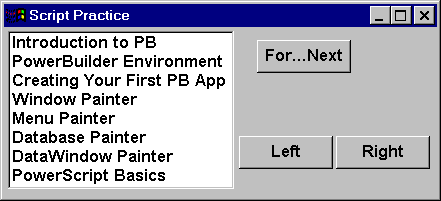
Place a ListBox on the window and enter values shown in the picture. Make use of the 'Items' tab page to enter the values. Place a CommandButton and name it cb_for_next_test and set the text to For�Next. Write the following code to the clicked event of cb_for_next_test. The following code displays the text value of each item in the ListBox.
// Object: cb_for_next_test CommandButton
// Event: Clicked
Integer li_TotalItems, li_Counter
li_TotalItems = lb_1.TotalItems()
For li_Counter = 1 to li_TotalItems Step 1
    MessageBox("Item No #" + String(li_Counter), &
               lb_1.Text(li_Counter))
Next
In the above code, two integer variables are declared. Follow the naming conventions. The first letter indicates the scope of the variable. This includes 'l' for local, ''i' for instance, 's' for shared and 'g' for global. You will be introduced to variable scoping in the later sessions, till then keep in mind the above said. The second letter indicates the datatype of the variable. For example 'i' for an integer variable. Sometimes, you come across multiple datatypes starting with the same letter, such as a date and a datetime. Here both are starting with letter 'd'. So, use 'd' for date and 'dt' for datetime. There is no limitation on the number of characters you allocate for a variable name, just end it with an underscore. For a datetime variable reportdate, give the name as ldt_reportdate. Some people capitalize each word in the variable instead of using underscore (this is called 'C' language naming convention), i.e., lDtReportDate. PowerBuilder way of naming is to use underscores and it is up to you and your organization to decide the standard.
In the second line, we are calling a function for the ListBox lb_1. This function returns the total number of items available in the ListBox. Once the total count is known, a MessageBox() function is used to display the text value of each item in a loop.
The variable after FOR is initialized to the value after the '=' sign, i.e.,1 in the above code. It automatically increments with the value specified after the STEP keyword. Omitting the STEP keyword would set the increment value to 1, the default value.
In the above MessageBox() function, we are sending two parameters, a title and a message. The first argument is the title which should be a string argument, for that reason we converted the counter into a string value by calling the String() function. For the second argument, Text() function is used to return the text value of the specified item number for the ListBox. Run the window and click on the FOR...NEXT button and see how it works.
In the above case, item details are displayed from top to bottom. What if, if the details are to be displayed in the reverse order? Well, it is simple. Change the value from 1 to -1 after the STEP keyword. also interchange the first and the last value.
// Object: cb_for_next_test CommandButton
//         in w_script_practice window
// Event: Clicked
Integer li_TotalItems, li_Counter
li_TotalItems = lb_1.TotalItems()
For li_Counter = li_TotalItems to 1 Step �1
    MessageBox("Item No #" + String(li_Counter), &
        lb_1.Text(li_Counter))
Next
In the above code, li_Counter is initialized to the largest value and is being decremented by 1 because of the -1.
What if, if you need to break out of the loop for a certain condition? Well, do it by calling EXIT. To exit from the loop after displaying five items, write the following code:
// Object: cb_for_next_test CommandButton
//         in w_script_practice window
// Event: Clicked
Integer li_TotalItems, li_Counter
li_TotalItems = lb_1.TotalItems()
For li_Counter = 1 to li_TotalItems Step 1
    MessageBox("Item No #" + String(li_Counter), &
          lb_1.Text(li_Counter))
    If li_Counter = 5 Then Exit
Next
IF statement comes in different flavors. The above format doesn't need any END IF keyword, since we had only one line of code and placed it on the same line.
| Home | Previous Lesson: DO �LOOP UNTIL Next Lesson: CHOOSE CASE...END CHOOSE |