| Home | Previous Lesson: How to Use a DataWindow? Next Lesson: DataWindow at Design Time |
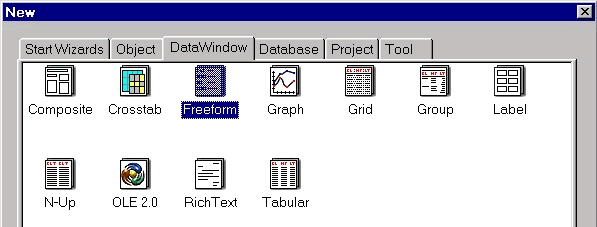
To invoke the DataWindow Painter, select File > New menu option and click on the DataWindow tab page.
We will be using the FreeForm presentation style while we examine various data sources. So, select FreeForm icon and click on Next button in the wizard. Check 'Retrieve on Preview' option if you want to see the data in the preview view (explained in a moment).
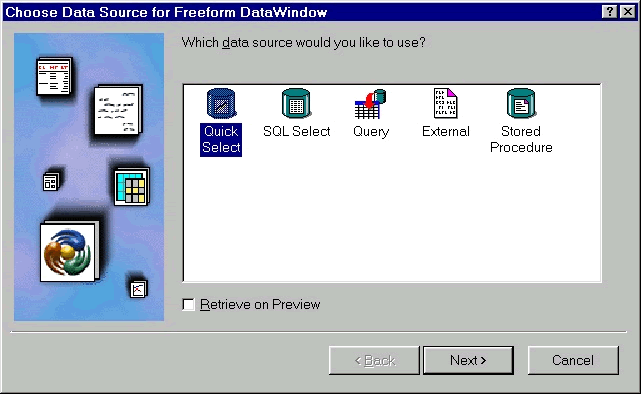
At this point, since this painter deals with the database, PowerBuilder automatically connects to the last used database if it is not already connected and if you did not select External presentation style.
The first task in creating a DataWindow is the declaration of a DataSource and a Presentation Style. Clearly, the former affects the selection of data from the database, while the latter affects presentation of the data.
Let us first explore all the data sources with one presentation style and then explore all presentation styles.
| Home | Previous Lesson: How to Use a DataWindow? Next Lesson: DataWindow at Design Time |