| Home | Previous Lesson: Nested Reports Next Lesson: Sorting & Filtering Data |
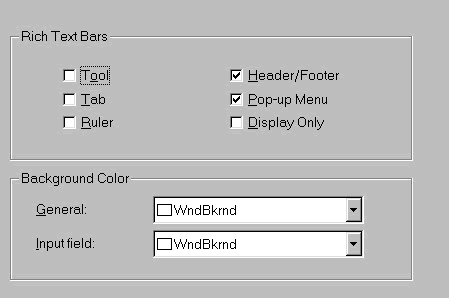
This presentation allows you to display data with a wide variety of font attributes for each field. When you use this style you need not use MS-Word for mail-merge applications. We don't have the right data to demonstrate this presentation style. To try out this style, invoke DataWindow painter and select 'SQL Select' and 'Rich Text'. This presentation style DataWindow has six built-in toolbars apart from the toolbars that are displayed for the application. Select all those toolbars from the 'Rich Text Bars' group, that you want to display to the user at run-time. Specify background color for the DataWindow and input fields, i.e., the columns that you selected in the data source definition.
Select all the columns from the product_master table and click on SQL toolbar icon. You will be presented with a dialog box that allows you to choose options you would like to have at run-time for this DataWindow. Choose the necessary options.
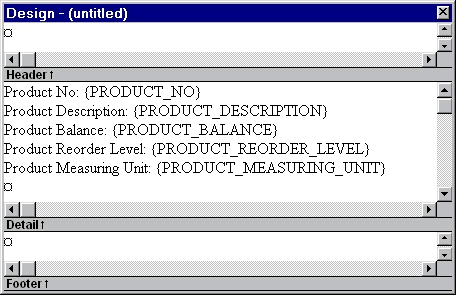
One thing you might notice is that, the fields are placed in the detail band, as in a free form presentation style DataWindow. However, the labels to the fields are not named, instead the labels are free text. You can be type the text anywhere and you no longer have to insert a text object to display a text. Think this presentation style as a mini MS-Word program. The fields are enclosed in curly brackets. Click on the field and it blinks. Unlike other presentation styles, double clicking on the field name doesn't display the Properties sheet. Invoke the popup menu and choose Properties menu option.
Things that might surprise you would be, for input fields you can no longer choose the edit style from a variety of edit styles�such as DDDW, DDLB, EditMask, RadioButton, etc.. AutoSizeHeight property is no longer available, but each field has AutoSizeHeight feature enabled unless you choose Fixed Width option. Summary band is not available in this style. Objects such as SUM() and AVG() can't be inserted in this style, though computed fields can be created and used in them. Please note that, inserting a report in this style is not permitted.
| Home | Previous Lesson: Nested Reports Next Lesson: Sorting & Filtering Data |