| Home | Previous Lesson: Group Presentation Style Next Lesson: Label Presentation Style |
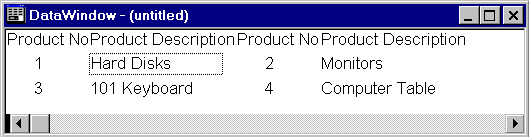
The N-Up presentation style displays data in a format similar to that of the newspaper columns, allowing you to use space efficiently by displaying more than one record across the pages. Another example would be a telephone directory, where you find multiple columns. Let's create a DataWindow with product_no and product_description fields and with two records per row.
PowerBuilder displays the data from left to right and then top to bottom as you see in the example above. PowerBuilder doesn't allow you to alter this organization, since there isn't any option to display the data from top to bottom and then left to right.
Once you specify the number of records for the detail row and go to the Design View, you can't change the number of records. If you want, you need to do so from scratch all over again.
| Home | Previous Lesson: Group Presentation Style Next Lesson: Label Presentation Style |