| Home | Previous Lesson: Getting the System Tables back in Sync Next Lesson: PowerBuilder Attributes and System Tables |
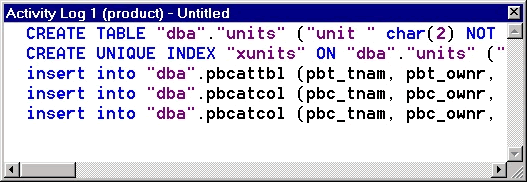
If you are curious to see the SQL (Structured Query Language, pronounced as 'sequel') statements that are used to create a table you would be interested in the logs. All DBAs save the schema to an ASCII file for future use. To see the statements that created the units table, select units table and select 'Object > Export Syntax To Log...' menu option. When the dialog box asks you to specify the data source, click OK. You will see all that syntax in Activity Log pane.
Scrolldown the screen to see the full syntax and appreciate the simpleness in creating a table using the Database Painter rather than using a character based SQL utilities such as ISQL.
You might wonder why you'd want to look at these SQL statements. If you're not familiar with SQL, it is a good method of learning the language, moreover there is a practical reason - it allows us to copy tables from one database to another.
PowerBuilder doesn't provide you with the ability to 'cut and paste' tables from one database to another. You must either manually reproduce the tables or use the logs to recreate them automatically.
Select File > Save As... menu option when you are in the Activity Log sheet. and call it UNITS.SQL. Sometimes, you may want to log all of your database activities in the database painter. In that case, you can select Design > Start Log menu option. At the end, stop the log by selecting Design > Stop Log menu option and save all the activity to a file.
| Home | Previous Lesson: Getting the System Tables back in Sync Next Lesson: PowerBuilder Attributes and System Tables |