| Home | Previous Lesson: Importing Data Next Lesson: Sorting Data |
We've seen how to import data from a tab delimited text file. It may occur to you that it would be useful to export data to some other format. To allow this PowerBuilder provides you with tools to support several popular file formats.
To see how it works, select 'Rows > Save Rows As...' menu option when the cursor is in the "Output (product) � Units" pane.
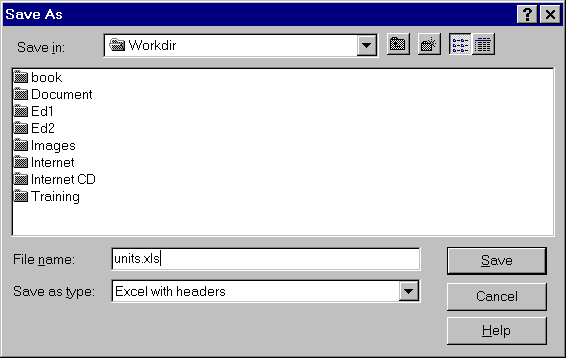
As you can see, PowerBuilder provides you with a wide choice of file formats. For example let us choose Excel with the Include Headers option selected (so as to know what the data refers to) and then give the file a name, say UNITS.XLS and click the OK button.
Now Alt + Tab out of PowerBuilder and open the file in Excel. You can see that we've the information from the units table in a standard Excel spreadsheet.
The .XLS file format that PowerBuilder creates isn't the latest version, in fact it is a Excel 5.0 or earlier worksheet. Fortunately, Microsoft operates a backward compatibility program, so Excel 7.0 will read the file. However any attempt to save changes to that Excel file will prompt you that the file is in older version format and asks if you want to update it to newer version format.
You can even export the data into SQL Syntax and execute it against another database or you can find/replace the table name and save the data into another table.
| Home | Previous Lesson: Importing Data Next Lesson: Sorting Data |