| Home | Previous Lesson: Popup Menus Next Lesson: Menu Properties |
Invoke the New dialog box by selecting File > New menu option and double-click on the Menu icon located in Object tab page.
Unlike the Window painter, by default, both design and preview pane are open. The left most is the preview pane and the one after that is design pane, meaning, whatever you paint in the design pane is previewed in the preview pane automatically. If you select an item the preview pane, PowerBuilder automatically selects corresponding item in the design pane.
In general, Items that are displayed horizontally in a menu, such as File, Edit, Window, Help are called Menu bar items. Items that belong to each menu bar item�displayed below the menu bar item, when the menu bar item is selected�are called Menu Items. For example, you may want to display Print, Exit for the File menu bar item and Cut, Paste for the Edit menu bar item and so on.
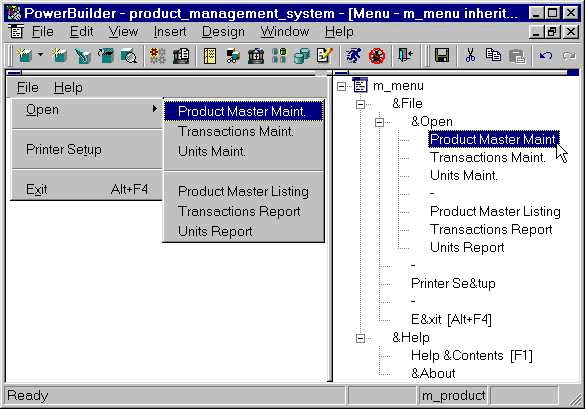
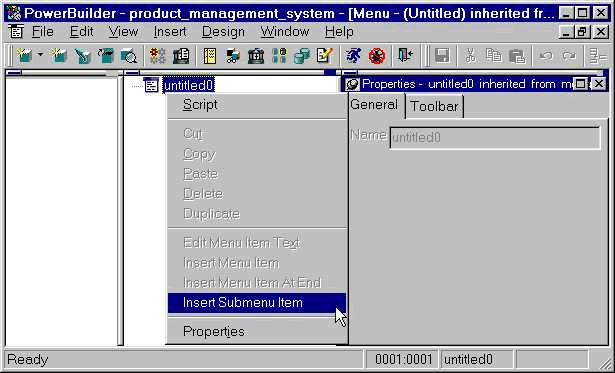
To insert a menu bar item or menu item, you need to invoke the popup menu on the item under which you want to insert, and select 'Insert Submenu item. The first item in the design pane represents the menu name. The next level of menu items�File, Help in the picture�will become menu bar items (they display horizontally). All the other levels of items become menu items and all other levels become cascade menu items (All options under Open in the picture). 'Insert Menu Item' and 'Insert Menu Item At End' popup menu options insert menu item, at the same level, before the current item and at the end respectively.
| Home | Previous Lesson: Popup Menus Next Lesson: Menu Properties |