| Home | Previous Lesson: Drawing Objects Next Lesson: Moving Controls |
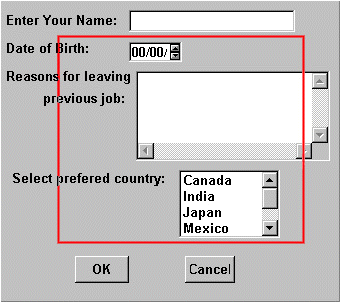
There are two ways in selecting more than one control. The first method involves holding down the Ctrl key while clicking on the controls you require or secondly you can click in the non-occupied are of the window and drag it to create a rectangle to surround all the controls you want to select.
The above screen-shot is an example for selecting multiple controls. Note that for a control to be selected, it needn't be completely enclosed by the box.
When you select a control, the corners turn black to indicate that it is selected and you can then affect any changes against it. This holds true for multiple control selections, but the actions you can perform against such selections are less.
Some of the actions you can perform against a multiple control selection include:

If you have any problem in selecting multiple controls, click on the projector icon, for a demo (selecting-multiple-controls.zip).
| Home | Previous Lesson: Drawing Objects Next Lesson: Moving Controls |