| Home | Previous Lesson: Tab Control Next Lesson: Hyperlink Controls |
RTE control gives you the power of WYSIWYG text editing in PowerBuilder application. Using this control you can provide word-processor like interface. You can see the real power of a RTE control only when you share data from a DataWindow.
Similar to any other window control, this control has Visible, Enabled, DragDropIcon, DragAuto and Pointer properties.
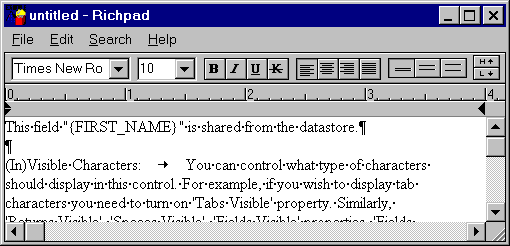
You can control the type of characters that are to be displayed in this control. For example, if you wish to display tab characters, you need to turn on TabsVisible property. So are ReturnsVisible, SpacesVisible, FieldsVisible properties. FieldsVisible property is useful when you share a DataWindow /DataStore with a RTE control and use DataWindow / DataStore fields in the RTE control; otherwise, this property has no effect on the controls' display behavior.
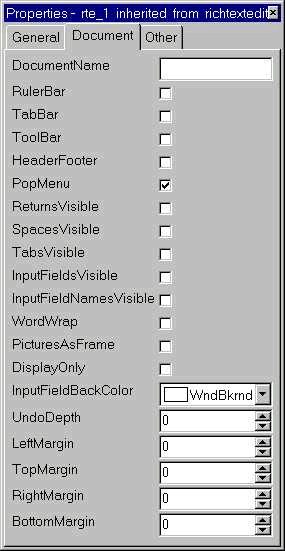
If you have used MS-Word, you might have used popup menu in the word-processor for context sensitive operations such as Cut, Paste, Copy, etc. Similarly, you can make PowerBuilder to display the popup menu for the RTE control at run-time by enabling the PopupMenu property. Except for a single mouse click you don't need to write code to display the popup menu in the RTE control.
RTE Control Toolbars: You can display a toolbar in the RTE control by turning on the Toolbar property. Don't get confused RTE specific toolbar with the general toolbars such as Powerbar, Painterbar and custom built toolbar for your application. RTE has one more toolbar called a 'Tabbar', that allows the user to set tab positions for different lines in the RTE control text. Similarly you can make the ruler bar visible.
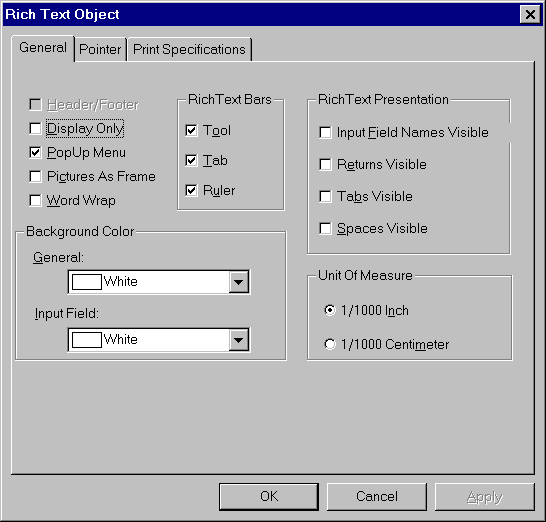
By turning on WordWrap property, you can control whether the text should wrap around if it reaches the right margin of the RTE control. Margins can be set using LeftMargin, RightMargin, TopMargin and BottomMargin properties. Maximum number of undo levels can be set using Undo Depth' property. The default value for this property is zero that means nothing can be undone. When there are more pictures in a document or when you want to display the RTE control faster, turn on PicturesAsFrame option. By default, PowerBuilder displays the picture as it is. However, you can choose not to and instead display a frame area that is equivalent to the picture dimensions. When a document is printed from the RTE control, the name specified in DocumentName property is used to be display in the print queue.
| Home | Previous Lesson: Tab Control Next Lesson: Hyperlink Controls |