| Home | Previous Lesson: Code Tables Next Lesson: MultiLineEdit |
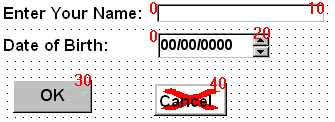
Tab Order defines the order in which the focus changes from one control to another as the user keeps pressing tab key. Each control in a Window has a tab order, which is measured in numbers. Controls with tab order 0 (zero) can't be tabbed on. It is vitally important to provide a smooth and well disciplined tab order, so that the user can easily follow the motion of the focus around the window. Your applications will quickly be condemned as unfriendly if you don't provide a sensible tab order.
To see the current tab order, select Format > Tab Order from the menu. In this mode, you can't do anything (including saving the window) except changing the tab order. However, if you click in other panes, say in the Properties pane or Script pane, you will be changed to design mode meaning you came out of taborder mode. You can see the tab order at the top of each control in red color. To change the tab order of a control, you need to click on the tab order number and type a new number.
PowerBuilder automatically creates a tab order that matches the order in which you placed controls on the window, spaced out with increments of 10.
If you have ever programmed in BASIC, back in the good old days before PCs, you might remember numbering your program lines with increments of 10 so that you could add extra lines later without having to re-number all your lines. The same principle applies with the tab order set by PowerBuilder.
The following controls are not included in the tab order or in other words, have been assigned a value of zero:
You can't tab into drawing objects or StaticText controls, so PowerBuilder allocates zero tab value by default to these controls; which means that they are not included in the tab order. This also applies to any RadioButtons or any other mutual exclusive controls that you place on a Window.
These defaults are generated for two main reasons:
When you place a custom User object (We didn't explain what a User object is. For the moment, just remember that a User object is a collection of one or more objects/controls) which contains more than one object/control on a window and tab onto it, you can press Tab key until every control within it has been visited. After that, continued tabbing will take you to the next control on the window.
Once you change the tab order, choose Format > Tab Order again to come back to normal mode.
| Home | Previous Lesson: Code Tables Next Lesson: MultiLineEdit |