| Home | Previous Lesson: Creating a DataWindow User Object Next Lesson: Custom User Objects |
Like any other control in a window, you can specify TAG value for the DataWindow control and then use them to display context sensitive help. However this is restricted to DataWindow as a whole. You encounter problems, if you want to display different textual help messages for each field within the DataWindow control.
To solve this problem, we need to find out the column in which the user is currently focused and then supply an appropriate message. For the first part of the problem, we can make use of the ItemFocusChanged event. When the user presses the Tab key or clicks on another column, ItemChanged, ItemError or ItemFocusChanged events will be triggered depending on whether or not the data has been changed, and if it has changed whether the new entry passes any predefined validation rules.
By using GetColumnName() function in the ItemChanged event, we can get the current column and by using the same command in the ItemFocusChanged event, we can get the next column name in the tab order.
For example, if the user presses TAB key when the focus is on product_no in the w_product_master window, the GetColumnName() function in the ItemChanged event would return product_no, while the same function in the ItemFocusChanged event would return product_description.
The following code gets the column name, and sets the MircroHelp, by obtaining the tag values using the Describe() function. Put this script in the ItemFocusChanged event for the DataWindow Control user object uo_DataWindow that we have just created.
// Object: uo_DataWindow Control user object
// Event: ItemFocusChanged
string ls_ColumnName, ls_TagValue, ls_Argument
ls_ColumnName = GetColumnName()
ls_Argument = trim( ls_ColumnName ) + ".Tag"
ls_TagValue = Describe( ls_Argument )
If ls_TagValue = "" OR &
   isnull( ls_TagValue ) OR &
   trim( ls_TagValue ) = "?" OR &
   trim( ls_TagValue ) = "!" Then
   ls_TagValue = "Ready"
End If
w_mdi_frame.SetMicroHelp( ls_TagValue )
The Describe() function returns an exclamation mark (!), when the argument is bad and returns a question mark (?), when the specified attribute has no value. We can use these returns in a test, setting ls_TagValue to 'Ready', the default value that appears on the status bar if anything goes wrong.
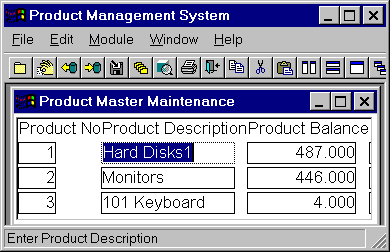
If you run the application, open the w_product_master by selecting 'Module > Product Master Maint'. option. Retrieve the data by selecting File > Retrieve from the menu. Now, keep on pressing the TAB key and see the help on the status bar. If you see Ready for a column, it means that you didn't define a tag value for that column in the DataWindow. To define the TAG value, open w_product_master and click with the right mouse button on dw_product DataWindow. Select 'Modify DataWindow' menu option. Now you are in the DataWindow design mode. Select one column at a time and go to the properties for each column and define the TAG value.
You can now use uo_DataWindow, instead of the standard DataWindow control where ever you need multi row selection and MicroHelp display functionality, without writing a single line of new code.
| Home | Previous Lesson: Creating a DataWindow User Object Next Lesson: Custom User Objects |