| Home | Previous Lesson: Creating a CommandButton User Object Next Lesson: Context Sensitive Help For DataWindow Controls |
By default, you can't select multiple rows, either continuously or randomly, in a DataWindow; you are restricted to one row at a time. This can be restrictive, so let's create a DataWindow user object with this functionality.
Note that this kind of functionality is already supported by programs such as Window Explorer. It has been commonly accepted that the users need to use the Ctrl and Shift keys in conjunction with a mouse click to select random or continuous items respectively, and so it would make sense to use this standard.
Invoke the user object painter and this time create a Standard DataWindow object.
The logic for this user object is quite simple. We store the selected row in an instance variable and then if the user uses the SHIFT key while selecting a new row, we select all the rows in a loop between the previously selected row and the current row. If they use the CTRL key, we simply add the current row to the list of selected rows.
We could write the entire code in the object's clicked event, but splitting the logic between two events, one standard and one custom, would be better. Therefore, let's define a user-defined event called ue_shiftclicked. DO NOT assign any event id to this event. Define a parameter paramrow, datatype long passed by value.
Next, we have to declare an instance variable to hold the selected rows.
Long il_DWSelectedRow
Now write the following code in the Clicked event for the user object:
// Object: uo_DataWindow control user object
// Event: Clicked
If Row > 0 Then
   If KeyDown(KeyControl!) Then
      This.selectrow(Row,true)
   Else
      This.selectrow(0,false)
      This.selectrow(Row,true)
   End If
   If KeyDown(KeyShift!) Then
      This.Event Trigger ue_ShiftClicked( Row )
      Return
   End If
End If
il_DWSelectedRow = Row
this.SetRow(Row)
The KeyDown()function is used to establish the key pressed by the user. If the user clicks the left mouse button without using any other key combination, we select the clicked row, deselecting others. If the Ctrl key combination is used, we add the highlighted row to our current selection and if the Shift key combination is used we trigger the user event.
The parameter for the KeyDown() is an enumerated data type. PowerBuilder's on-line help contains the list of all the keys that can be used as parameters for the KeyDown() function.
If you now look at the list of events that are possible for the user object, you'll find that our new user event ue_ShiftClicked is available. We need to write the following code into this event:
// Object: uo_DataWindow Control user object
// Event: ue_ShiftClicked
Long ll_OldRow, ll_StartRow, ll_EndRow, ll_RowCounter
ll_OldRow = il_DWSelectedRow
If ll_OldRow > ParamRow Then
   ll_StartRow = ParamRow
   ll_EndRow = ll_OldRow
Else
   ll_StartRow = ll_OldRow
   ll_EndRow = ParamRow
End If
For ll_RowCounter = ll_StartRow to ll_EndRow Step 1
   this.SelectRow( ll_RowCounter, true )
Next
this.SetRow( ParamRow )
this.SetColumn( 1 )
Return 0
You should be aware that the currently selected row might be either greater or lesser than the previously clicked row. For example, if you click on row 10 and click on row 16 with the Shift combination, the ll_StartRow will be10 and ll_EndRow will be16. In another case if you click on another row with the Shift combination that is less than 10, say 5, then in that case, ll_StartRow will be 5 and ll_EndRow will be 10. These endpoints are organized into sensible start and final variables by the if statement.
The FOR loop is used by the SelectRow() function to select all the rows from ll_StartRow to ll_EndRow. The second argument to the SelectRow() decides whether to select (true) or deselect (false) the specified row. After this, we store the currently selected row in the il_DWSelectedRow variable.
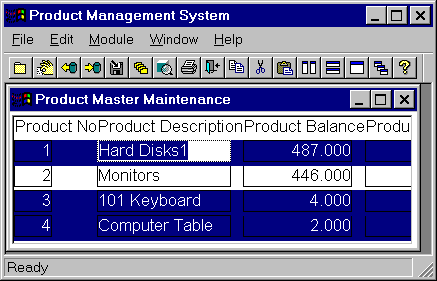
We've effectively replaced dw_product with our user object of type DataWindow. If you run the window as it is, you be able to see the effect of our new functionality.
As you can see, we can now select multiple rows on the DataWindow.
| Home | Previous Lesson: Creating a CommandButton User Object Next Lesson: Context Sensitive Help For DataWindow Controls |