| Home | Previous Lesson: Model Next Lesson: Why Implement OLE? |
The following sections provide an overview of each of the OLE features from the user's perspective.
With visual editing, the user can double-click an object in a compound document and interact with the object right there, without switching to a different application window. The menus, toolbars, palettes, and other controls necessary to interact with the object temporarily replace the existing menus and controls of the active window. In effect, the object application appears to "take over" the compound document window. When the user returns to the compound document application, its menus and controls are restored.
Visual editing represents a fundamental change in the way users interact with personal computers. It offers a more "document-centric" approach by allowing the user to focus primarily on the creation and manipulation of information rather than on the operation of the environment and its applications. This approach allows users to work within a single context - the compound document.
Visual editing can include a variety of operations depending on the capabilities of the object. Embedded objects can be edited, played, displayed, and recorded in-place. Linked objects can be activated in place for operations such as playback and display, but they cannot be edited in-place. When a linked object is opened for editing, the object application is activated in a separate window. To return to the compound document, the user must either close the object application or switch windows.
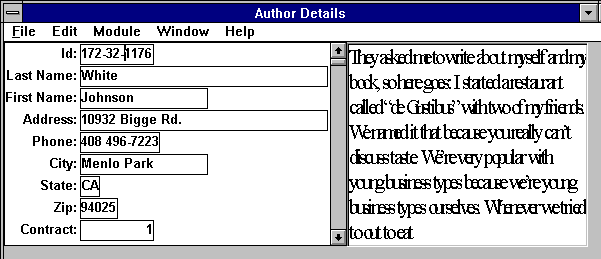
The following figure shows what happens to an application when the user decides to activate an embedded object in-place for editing. In the top window, the embedded document appears well integrated into the PowerBuilder application window. However, when the user double-clicks the document to start in-place editing, the PowerBuilder application undergoes several changes as is demonstrated in the bottom window in the above figure.
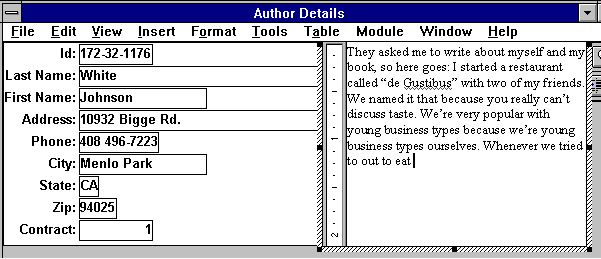
The title bar changes to reflect the name of the object application; that is, the word processor program. The menu is the result of the PowerBuilder application and the word processor applications merging their individual menus. The word processor changes in appearance; hatch marks surround its border to indicate its activated state. In the above picture, you can also see the red underlines in the text which is the result of MS-Word automatic spell-checking. When the user has finished editing and clicks outside the document's border, the window once again looks like it belongs to a PowerBuilder application.
The most widely used method for transferring data between applications has been the Clipboard. With the Clipboard method, the user chooses the Copy operation while in the object application, moves to the target application, and chooses Paste to put the object in place. Although effective, a more natural way to exchange data between applications is simply to click an object, drag it to its destination, and drop it in place. OLE supports this "drag and drop" functionality of objects in addition to the traditional Clipboard functionality.
Drag and drop eliminates the traditional barriers between applications. Instead of perceiving window frames as walls surrounding data, users are able to freely drag information to and from a variety of applications. Drag and drop makes compound documents easier to create and manage because it provides an interactive model that more closely resembles how people interact with physical objects.
| Inter-window dragging | Dragging data is from one application window into another application window, is called inter-window dragging. |
| Inter-object dragging | Objects nested within other objects can be dragged out of their containing objects to another window or to another container object. Conversely, objects can be dragged to other objects and dropped inside them. |
| Dropping over icons | Objects can be dragged over the desktop to system resource icons such as printers and mailboxes. The appropriate action will be taken with the object, depending on the type of resource the icon represents. |
Objects remain on disk until needed and are not loaded into memory each time the container application is opened. OLE also supports a transaction type storage system, providing the user with the ability to commit or rollback any changes that they make to the object. This ensures that data integrity is maintained as objects are stored in the file system.
Objects can be linked to or embedded in another object (or even part of an object) in the same compound document. For example, a graph showing sales figures for the month of January may be linked to the part of an embedded spreadsheet which contains January's figures. A change in the spreadsheet figures will automatically affect the linked graph. Nested object linking provides for more efficient use of memory. Users can directly manipulate the nested object. There is no need to launch multiple applications to arrive at the object to be edited.
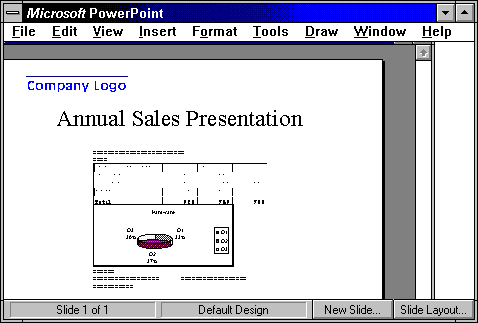
Figure 6 PowerPoint application having Word 6.0 embedded. Spread sheet is embedded in Word 6.0 document.
Above figure illustrates Microsoft PowerPoint has a Word 6.0 document embedded in it. Word 6.0 document has a Spread sheet object and Spread sheet graph embeds in it. Nested object support gives users additional freedom to manipulate objects in limitless combinations and work with compound documents more productively.
Automation refers to the ability of an application to define a set of properties and commands and make them accessible to other applications to enable programmability. OLE provides a mechanism through which this access is achieved. Automation increases application interoperability without the need for human intervention.
The main purpose of this can be best described in an example. Let's say that you have some data in a database you would like to perform a regression analysis. Typically, the database developer would have to create a function or sub-routine that contains the regression analysis formula and then pass the data to the function. The development of this function could take a considerable amount of time. In fact, why create a routine when spreadsheets do regression analysis quite well? So, the better approach would be to "pass" the data to the spreadsheet program, "instruct" the spreadsheet program to perform the regression analysis on the data, and "pass" back the results. This allows a macro developer to open up entirely whole new worlds. In fact, you could even start to consider a spreadsheet program as one large compilation of subroutines and functions that are easily callable and accessible.
This was previously achieved through a mechanism called Dynamic Data Exchange or DDE. DDE would give application macro developers the ability to control one application from another, but the methods to achieve this were not trivial. DDE required that a significant amount of time be devoted to error-handling and only a limited amount of data could be automatically passed from one application to another at one time. Consider the example of performing a regression analysis on data in a database. The following steps quickly map out what commands would be necessary if DDE calls were made:
| 1 | Establish a connection from the controlling application (source) to the application (destination) that will be controlled. |
| 2 | Test to make sure that the destination application can receive the commands and is not busy. |
| 3 | From the source application, tell the destination application what is trying to be accomplished. |
| 4 | Test to make sure the destination application can handle what is trying to be accomplished. |
| 5 | Take one data point at a time from the source application and pass it to the destination. |
| 6 | Test each data point to ensure that the destination received it and that the connection is still live. |
| 7 | Once all the data points have been sent to the destination, instruct the destination to perform the regression analysis on the entire data set (this is even another command). |
| 8 | Prepare the source to now receive the result of the regression analysis and pass the result from the destination to the source. |
| 9 | Test to ensure that the source received the result. |
| 10 | Close the connection. |
This example appears quite simplistic, but from a DDE programming standpoint this would likely take around 60 lines of code.
With OLE 2.0 and OLE Automation, the process to achieve this is significantly easier. Applications written to support OLE 2.0 expose properties and commands that can be controlled from other applications. The public exposure of these properties and commands allows one application to contain code that manipulates another application. It also allows developers to create new applications that can interact with existing applications.
Using OLE automation in the above example, we will see how the same results can be achieved with minimum effort:
| 1 | Establish a connection from the controlling application (source) to the application (destination) that will be controlled. |
| 2 | Define the entire data set in the source as an object and pass the object to the destination. |
| 3 | Instruct the destination to perform the regression analysis on the object. |
| 4 | Instruct the destination application to return the result of the regression analysis to the source application. |
In OLE, objects can contain information about the application that created them, including the name of the application and the version of that application. This allows applications to know more about the objects they are dealing with, and allows them to handle objects based on the applications or versions of applications that created them.
For example, when an object created by version 1.0 of application X is embedded into a document that is moved to a system having only version 2.0 of that same application and a user tries to edit the object, version 2.0 of the application can determine that the object is from an older version and can take any action it desires. It can, for example, prompt the user to upgrade the object to a new format.
Objects can be almost any type of information, including text, bitmap images, vector graphics, and even voice annotation and video clips. The objects themselves must be created from an application that supports OLE 1.0 or 2.0. Once data is copied to the clipboard from the OLE application, the data is now considered as an object (data with intelligence) such that when you paste it into a container document (this must also support OLE 1.0 or 2.0), the object "knows" what source application created it and what it should do if a user double-clicks on the object.
OLE associates two major types of data with an object: visual representation data and native data. An object's visual representation data is information needed to render the object on a display device, while its native data is all the information needed for an application to edit the object. The visual representation will typically always be present, but the native data depends on what method of OLE was used: linking or embedding. In linking, as stated above, you will see the data (visual representation), but you may not be able to do anything with the data unless the source document is available. In embedding, you will also see the data (visual representation), but the native data will activate the object's service assuming that the application that created the object is available.
| Home | Previous Lesson: Model Next Lesson: Why Implement OLE? |