| Home | Previous Lesson: OLE Columns in the DataWindow Next Lesson: OLE 2.0 Control in the DataWindow |
As explained earlier, OLE Database BLOB is used to retrieve date from BLOB data type column and save back to the database. But, it doesn't allow you to use OLE for other data type columns. You may want to allow users editing the database data in their favorite application, say, Word, Excel and apply all the validation in PowerScript and save the changes back to the database. You can accomplish this with DDE, but, it needs lot of programming and error handling.
With version 5.0, PowerBuilder allows you to present data in the OLE 2.0 presentation style, i.e., retrieve data from the database and present the data to the user in one of the OLE server, say, Word, Excel, PowerPoint, etc. PowerBuilder takes care of formatting the data according to the OLE Server requirement and sending it to the OLE Server and getting the data back and formatting back to the PowerBuilder format.
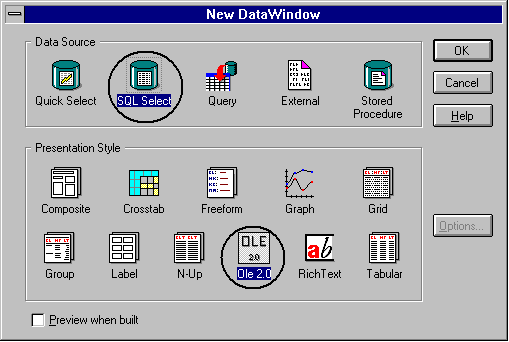
As a programmer, what you need to do is, just simply select OLE 2.0 presentation style, instead of one of the traditional presentation styles. That's all, you are done. For example, let us present all the employee information to the user in Word 6.0. To do this, invoke the DataWindow painter and select "New" from the dialog box and select "SQL Select" from the data source, and OLE 2.0 from the "Presentation Style" as shown in the above picture.

Select "employee" table and select all the columns and click on "SQL" toolbar icon. Select "Microsoft Word Document" from the "Insert Object" dialog box. After this DataWindow looks as shown below, with the OLE control with hatched border. Click outside the OLE control border and you will be presented with OLE Object properties dialog box. From the "Source Data" List Box, click each column you want to display in the OLE server, and drag-and-drop into the "Target Data" List Box. In some situations, you may want to display data in groups, say, you may want to display data grouped by state.
In that case, Drag-and-Drop all the columns from the "Source Data" List Box into the "Group By" List Box. PowerBuilder automatically groups the data into the specified groups before sending to the OLE Server. You can also write expressions in the target data, by double-clicking on the column in the "Target Data" List Box. Click on OK CommandButton. You will be presented with an empty DataWindow. That's all, you are done. Save the DataWindow. Clicking on the "Preview" toolbar icon will retrieve the data and data will be displayed in small font. Double-click on the DataWindow to invoke Word and you will see all the retrieved data in a table format, in the same window with hatched border.
| Home | Previous Lesson: OLE Columns in the DataWindow Next Lesson: OLE 2.0 Control in the DataWindow |