| Home | Previous Lesson: In-Place Editing & OLE Server Menus Next Lesson: OLE Presentation Style DataWindow |
Data types that store large amount of data can't be used in the DataWindow in the same way you use traditional data types such as string, integer, etc.. These special data types are called BLOB (Binary/Text Large Objects) and are used to store large amount text like sample session of a book, image, audio, video, etc. PowerBuilder handles these BLOB data types in a different way, in the DataWindow as well as in embedded SQL. In case of embedded SQL you can use SELECTBLOB and UPDATEBLOB statements. In case of DataWindows, you need use "OLE database Blob" columns and use OLE technology. In PSDEMODB.DB database, we have a column of 'long binary' data type, "screen" column in the "examples_previews" table. Let us see how to select data from this column to display in the DataWindow and how to update this column.
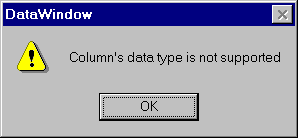
Invoke the DataWindow painter and select "SQL Select" data source and "Tabular" presentation style. Select "examples_previews" table. Select "window" column, you are not allowed to select "screen" column and if you try you will see an error message as shown in the following picture, since you have to handle BLOB data types differently. Return to the design mode.
Select "Objects/OLE Database BLOB" from the menu and place in the detail band next to "window" column. You will be prompted for the BLOB definition as shown in the following picture.

You can leave the "Class Name", "Client Name" to the defaults. These two values are used by some OLE servers to display in the OLE Server windows. If the primary key is defined, PowerBuilder automatically populates "Table" and "Large Binary/Text columns" for you, otherwise select "examples_previews" for the Table and "screen" for the other prompt. Remember, if the primary key is not defined to the table, you are not able to update the DataWindow. The value in the "Key Clause" is used by the PowerBuilder in the WHERE clause in the UPDATE/DELETE statement to update the database table. If you want to use a default template every time you invoke the OLE server, you can provide one or leave it empty.
Select the OLE server name from the drop-down ListBox. You will see the OLE Server Class long name, once you select the class name, only the short name will be displayed. The value in the "Client Name Expression" is used to identify the row and column no. in the DataWindow from the OLE Server. When you invoke the OLE Server from the DataWindow, the result of the "Client Name Expression" is displayed.
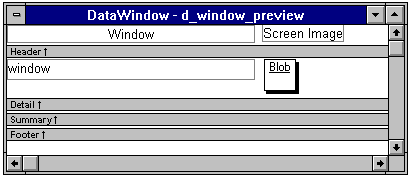
To see how it works, go to preview mode and insert a row and provide a value for the "window" and double-click on the database BLOB column. The following figure displays:

If you see in the SQLPreview event, you can see data for the "window" only, not for the "screen" column. PowerBuilder makes some internal calls to update this column. If you are using SQL Server, make sure you set "AutoCommit" to True, before you update this DataWindow and change it back to "False" once update is done. When the use double clicks on this column, PowerBuilder automatically invokes the OLE Server. If you want to invoke programmatically, you can use "OLEActivate" function.
Dw_1.OLEActivate( GetRow(), 2, 0)
The last argument is the OLE Server verb. Typically 0 is activate the server. As explained above, to find other supported verbs, use RegEdit/V. You can change the OLE Server dynamically by setting "Class" attribute as shown below:
dw_1.Modify( 'item_image_blob.oleclass="word.document"' )
Make sure to name the column when you create However, when you change the OLE Server, it is applicable for new rows only. For example, there is one row in the DataWindow and it has a word document. Now you change the OLE Server to PaintBrush and insert a row and invoking the server invokes the PaintBrush. If you invoke the OLE Server for the first row, it will invoke the Word not the PaintBrush.
| Home | Previous Lesson: In-Place Editing & OLE Server Menus Next Lesson: OLE Presentation Style DataWindow |