| Home | Previous Lesson: Importing a Spreadsheet using Clipboard Next Lesson: Hot Link with Excel |
As with all user-friendly applications, there are many ways to perform the same task. Instead of referring to the cell references explicitly, you can name the range you are interested in and then use that name in the macro.
It takes three steps to define a name in Excel:
| 1. | Select the range of cells (R2C2 to R5C4). |
| 2. | Select "Insert/Name/Define...". |
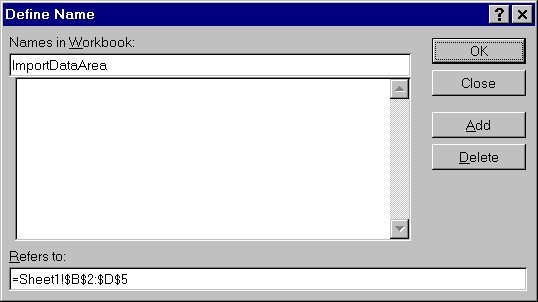
| 3. | Supply a name "ImportDataArea" and click OK button... |
Select "Tools/Macros" from the menu. Select "Macro1" and click "Edit" button. Change the following line:
Range("B2:D5").Select
to the following:
Application.Goto Reference:="ImportDataArea"
Save the spread sheet. Now if you run the w_dde window and click on the second CommandButton, you'll get the same data in the DataWindow control.
You may wonder how beneficial it is to use names - our next example will show you. Open the DDETST1.XLS spreadsheet again and go to sheet1, which contains the data. Now, insert a row before the fifth row and add the extra data:
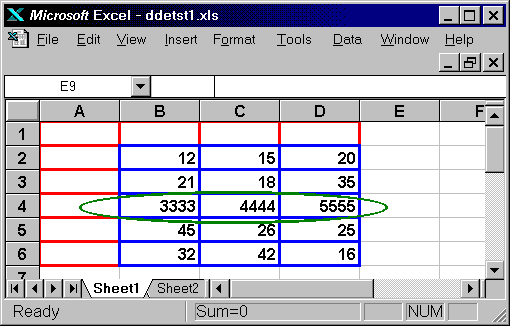
If you run the application now and click on the second CommandButton, the data shown in the DataWindow control includes the inserted row:
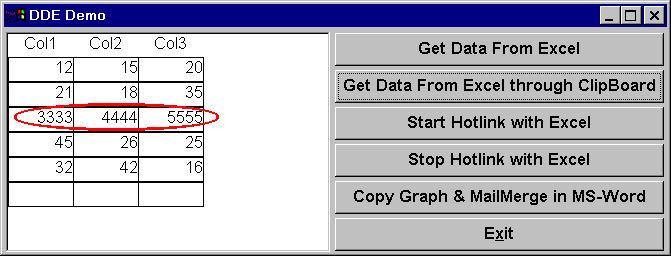
This is an example of how we can take advantage of Excel's relative addressing. When you insert a row in the spread sheet, Excel notices that new information has been inserted inside the boundaries of a predefined data set ( denoted by the name criteria ) and alters the cell range to take it into account the new boundary of the data set. This feature contributes to less code changes in PowerBuilder and also less hard-coding of the cell names. If the user defines the name at a different location in the spread sheet, our application still works without any code change.
If you see the Name "ImportDataArea" definition, you'll find that the cell range has changed to reflect the inserted row.
Things won't run as smoothly as you would expect if you use our code as it stands at the moment. You may notice that Excel's title bar starts flashing in the background when the data is retrieved. This indicates that Excel is waiting for a response. If you use the Alt+Tab keys to switch to Excel, you'll see the problem:
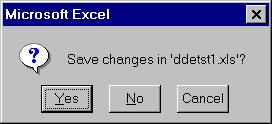
We've added data to the spreadsheet, so, Excel prompts us whether to save the changes to DDETST1.XLS or not. As we have said earlier, the only way to solve this problem is to add the [ERROR()] command, as shown below, to our script with the parameter, depending on what we wish to do with the changes.
ExecRemote('[Run("Macro1")]', lExcelChannelNumber )
dw_1.ImportClipboard()
ExecRemote( '[ERROR(FALSE)]', lExcelChannelNumber )
ExecRemote( '[File.Close()]', lExcelChannelNumber )
| Home | Previous Lesson: Importing a Spreadsheet using Clipboard Next Lesson: Hot Link with Excel |