 Invoke MS-Word and create a new document "PBSERVER.DOC.
We need to record a macro "TalkToPBServer" by selecting Tools/Macro.…
Once you record that empty macro, edit the macro and replace the macro definition with the
following code:
Invoke MS-Word and create a new document "PBSERVER.DOC.
We need to record a macro "TalkToPBServer" by selecting Tools/Macro.…
Once you record that empty macro, edit the macro and replace the macro definition with the
following code:
| Home | Previous Lesson: Mail Merge Next Lesson: OLE - Part I |
The previous examples have used PowerBuilder as a client in the DDE conversation. Our final example shows how to use PowerBuilder as the server and extract information from it with Word.
For this example, we'll use a different window and another Word macro to initiate the conversation. There's quite a bit of setting up necessary, so once again, we'll go through the various components.
Invoke MS-Word and create a new document "PBSERVER.DOC.
We need to record a macro "TalkToPBServer" by selecting Tools/Macro.…
Once you record that empty macro, edit the macro and replace the macro definition with the
following code:
Sub MAIN
channel = DDEInitiate("PBApp", "DDEServerModule")
DDEPoke channel, "3", "Testing data,(DDE from Word)"
a$ = DDERequest$(channel, "product_no,product_description,product_balance")
Insert a$
DDETerminate channel
End Sub
There are four DDE specific commands:
| 1. | The DDEInitiate command takes two parameters: Application and the Topic, and initiates the conversation. |
| 2. | The DDEPoke command sends values to the application. |
| 3. | The DDERequest$ gets information from the application. |
| 4. | The DDETerminate stops the conversation. |
An Insert command simply inserts the retrieved data into the Word document. The data deals with product information, so we want to retrieve the product_no, product_description and product_balance fields from the database.
Paint a window "w_dde_server" as shown below. The top one is the DataWindow control "dw_1". Assign "d_products_maint" DataWindow object to "dw_1". Other controls are CommandButtons. Leave the names to their defaults. Change the window title to "PB as DDE Server".
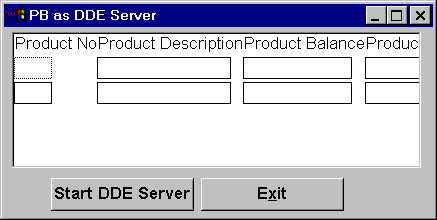
Write the following code in the w_dde_server's open event.
dw_1.SetTransObject( SQLCA )
dw_1.Retrieve()
Write the following code to the clicked event for the "Start PowerBuilder DDE Server" CommandButton.
integer lRetVal
lRetVal = StartServerDDE( "PBApp", "DDEServerModule")
If lRetVal <> 1 Then
   MessageBox( "Starting DDE server Error", lRetVal )
End If
Even before we can use PowerBuilder as a DDE server, we have to set up an Application and Topic. The code in the clicked event does this.
We use the StartServerDDE() function to set up the Application and Topic. When PowerBuilder executes this command, it informs the operating system, "I am ready to serve as a DDE server. My (Server) name is <First Parameter> and clients can ask data from the <second parameter>".
When PowerBuilder acts as a server, it is necessary to check the commands sent by the client and trigger events explicitly. For this, we have to write code for three window level events:
| 1. | RemoteExec |
| 2. | RemoteSend |
| 3. | RemoteRequest |
Let's look at the code for them and see what they do.
When PowerBuilder receives a request from a client, a remoteexec event occurs. We use this event to determine which client has sent the commands:
// Object: w_dde_server
// Event: Remoteexec
String lApplication
int lRetVal
lRetVal = GetCommandDDEOrigin( lApplication )
If lRetVal = 1 then
   RespondRemote( TRUE )
End if
The GetCommandDDEOrigin() function determines the client, and if it is successful, we set RespondRemote to TRUE. In this example, we aren't doing any checks for the application name. Add an IF statement to check it.
This event occurs whenever the client sends data to PowerBuilder. In the Word macro, we used the DDEPoke command, so we have to add code here to handle it.
String lCommand, lApplication, lTopic, lItem, lData, lDWArg
int lRetVal
Long lRowNoFound
lRetVal = GetDataDDEOrigin( lApplication, lTopic, lItem )
If lRetVal = 1 Then
   GetDataDDE( lData )
   lDWArg = "product_no = " + lItem
   lRowNoFound = dw_1.Find( lDWArg, 0, dw_1.RowCount())
   If lRowNoFound > 0 Then
      dw_1.SetItem( lRowNoFound, "product_description", lData )
      RespondRemote( TRUE )
   Else
      RespondRemote( FALSE )
   End If
End If
Just to remind you, the DDEPoke command was:
DDEPoke channel, "3", "Testing data,(DDE from Word)"
The second parameter is the Item we are interested in and the third parameter is the data we want to send. The translation would be 'Find the item with product_no 3 and replace the product_description with "Testing data, (DDE from Word)''.
The GetDataDDE() function strips the value of the third parameter and places it in a local variable, to be ready when we successfully locate the Item. We then simply replace the current Title with the data in the local variable.
This event occurs whenever a client requests data from PowerBuilder. PowerBuilder doesn't have easy referable data locations, such as the cells in a spreadsheet, so, we have to customize the data that is requested in the DDERequest command from the client:
String lApplication, ltopic, litem, lDataToclient
long lTotRows, i
int lRetVal
lRetVal = GetDataDDEOrigin( lApplication, lTopic, lItem )
lItem = Upper( lItem )
lTotRows = dw_1.RowCount()
For i = 1 to lTotRows
   If Pos( lItem, "PRODUCT_NO" ) > 0 Then
      If i = 1 Then
         lDataToclient = lDataToclient + string( &
                         dw_1.GetItemNumber(i,"product_no"))
      Else
         lDataToclient = lDataToclient + char (5) + &
                         string( dw_1.GetItemNumber(i,"product_no"))
      End If
   End If
   If Pos( lItem, "PRODUCT_DESCRIPTION" ) > 0 Then
      lDataToclient = lDataToclient + "~t" + &
      dw_1.GetItemString(i,"product_description")
   End If
   If Pos( lItem, "PRODUCT_BALANCE" ) > 0 Then
      lDataToclient = lDataToclient + "~t" + &
                      String(dw_1.GetItemNumber(i,"product_balance"))
   End If
Next
SetDataDDE( lDataToclient )
RespondRemote( TRUE )
We simply loop through the data in the DataWindow control using the GetItemNumber() or GetItemString() functions, to retrieve the required data and add it to lDataToClient.
The ~t is a special character that is used to place a tab between each entry - this is the manual creation of a tab-delimited list. When we've gone through all the data, we send lDataToClient to the client using the SetDataDDE command.
Replace "Open(w_dde)" with "Open(w_dde_server)" in the application's open event. Run the application. Click on "PB As Server" button.
Now open up the PBSERVER.DOC document and run the "TalkToPBServer" macro. You should see the following information inserted into the Word document:
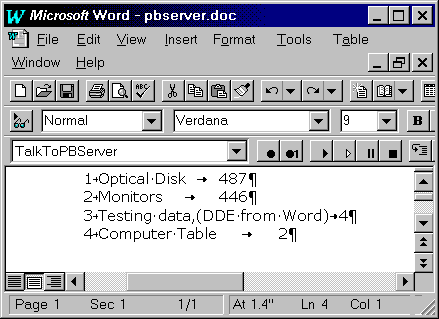
You can see that the description of product number 3 has been changed to display the test message, but was it changed in PowerBuilder? Switch back to the "w_dde_server" window and you'll see that the value in the DataWindow control has also been changed:
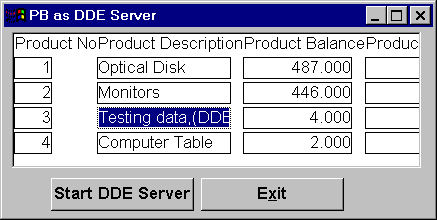
The value in the DataWindow object hasn't been changed, just the display in the DataWindow control. However, as in the last example, it would be easy to extend the code to retrieve and update the actual information in a database.
 |
DDE can be temperamental, so, if you do experience problems getting any of the examples to work, don't despair, try experimenting with different commands or the logic used in other examples. The first step in finding problems is to check the references to file names used in the code and macros to ensure that they correspond to your set up. |
| Home | Previous Lesson: Mail Merge Next Lesson: OLE - Part I |