| Home | Previous Lesson: Closing the Debug Window Next Lesson: Logging SQL Statement Execution |
Till now, we have described about using the debugger interactively. If you are interested in the flow of an application line by line, then PowerBuilder provides a way to do it. With this facility you can log the flow of an application's execution line by line, but since PowerBuilder logs every line of execution, you will find that the application executes slowly.
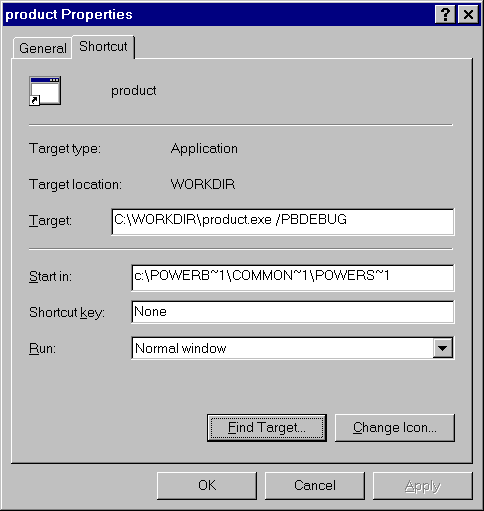
For this, after creating the executable version of the application, supply /PBDEBUG as the command line argument for the .EXE file in the Properties dialog box. ( Creating an executable is not covered yet. May be you want to do this after that session. For now, go through the concept. )
You have no control over the log file name. It is by default the .EXE file name with the .DBG file extension. This file is created in the working directory specified in the properties box.
PowerBuilder starts logging the application from the start and continues to do so till the application exit. You have no control over specifying beginning and end points. A typical trace file looks like the one shown below:
Executing event script CLICKED for class M_ABOUT,
                     lib entry M_MDI_MENU
  Executing instruction at line 1
  Executing event script CREATE for class W_ABOUT,
                     lib entry W_ABOUT
    Executing instruction at line 2
    Executing instruction at line 3
    Executing instruction at line 4
    Executing instruction at line 5
    Executing instruction at line 6
    Executing instruction at line 7
    Executing instruction at line 8
    Executing instruction at line 9
  End event script CREATE for class W_ABOUT,
                                    lib entry W_ABOUT
  Executing event script OPEN for class W_ABOUT,
                         lib entry W_ABOUT
    Executing instruction at line 2
  End event script OPEN for class W_ABOUT,
                              lib entry W_ABOUT
  Executing event script UE_MOUSEMOVE for class
           UO_COMMANDBUTTON, lib entry UO_COMMANDBUTTON
    Executing instruction at line 1
    Executing instruction at line 2
  End event script UE_MOUSEMOVE for class UO_COMMANDBUTTON,
                     lib entry UO_COMMANDBUTTON
  Executing event script UE_MOUSEMOVE for class UO_COMMANDBUTTON,
                     lib entry UO_COMMANDBUTTON
    Executing instruction at line 1
    Executing instruction at line 2
  End event script UE_MOUSEMOVE for class UO_COMMANDBUTTON,
                     lib entry UO_COMMANDBUTTON
You may find that lines appear for which code wasn't written. The reason for this is, as we have already explained in the previous sessions, every PowerBuilder object is inherited from the base PowerClass object. There may be certain script in these base objects, which PowerBuilder executes behind the scenes and whom we never see. When you use the logging feature, PowerBuilder displays them just like the code written by us. There is no way to open it or to change it or to find out exactly what the code does.
| Home | Previous Lesson: Closing the Debug Window Next Lesson: Logging SQL Statement Execution |