| Home | Previous Lesson: Converting to a MDI Application Next Lesson: Creating a New User Interface |
To open an instance of a window as a sheet, we use the OpenSheet() function and a local variable declaration. If we open more than one instance of a window, the data in each instance is independent of the other.
We want to allow the user to open an instance of "w_product_master" whenever (s)he selects 'Product Master Maint.' option from the 'Module' menu, so we have to write script for this menu item. Open "w_mdi_menu" from the menu painter, go to the script for 'Module/Product Master Maint'. If you look at events for a menu item, you'll see that there are two events: clicked and selected.
The selected event occurs whenever a user scrolls through the menu options using the arrow keys or the mouse pointer. The clicked event occurs when the user clicks on the option or presses the 'Enter' key when the option is highlighted. This is the event for which we want to write code.
// Object: "Module/Product Master Maint." in "m_mdi_menu" menu.
// Event: Clicked

w_product_master l_sheet1
OpenSheet( l_sheet1, ParentWindow, 4, Cascaded! )
The first line declares l_sheet1 as a local variable based on w_product_master. The second line calls the OpenSheet() function with the following parameters:
l_sheet1 is the name of the window which is to be opened.
ParentWindow is the name of the MDI Frame in which the window is to be opened. When you code the script for a menu item, this parameter is always ParentWindow. You can hard code the MDI Frame window name into the script, but, by using ParentWindow, maintenance required is reduced in cases where name of the MDI frame window is changed. This also gives us a chance to attach the menu to any MDI Frame window.
4 is the menu option under which the list of opened sheets is to be displayed. The standard place to display opened windows is the 'Window' menu option, the second option from the right. PowerBuilder allows you to specify this as the default when a zero is used. We know that, "m_mdi_menu" doesn't have a 'Window' option. So, the open sheet's names would be displayed under the 'Module' option for now. When we assign menus to other sheets, the problem would be rectified. The reason we didn't paint 'Window' menu option for the 'm_mdi_menu' menu is that, the options under the 'Window' menu option doesn't apply unless at least a sheet is opened in the MDI frame window. When a sheet is opened, the menu attached to that sheet has the 'Window' menu option and the opened window names listing will automatically move to 'Window' menu option from 'Module' menu option.
Cascaded! argument indicates how the opened sheets are to be arranged in the frame. PowerBuilder supports three basic formats: Cascaded!, Layered! and Original!.
We declared w_product_master as a local variable and then used this in the OpenSheet() function, as it allows us to open more than one instance of w_product_master window. If we had used the following code:
OpenSheet( w_product_master, ParentWindow, 4, Cascaded! )
and then try to open another instance of the window it would only activate the sheet.
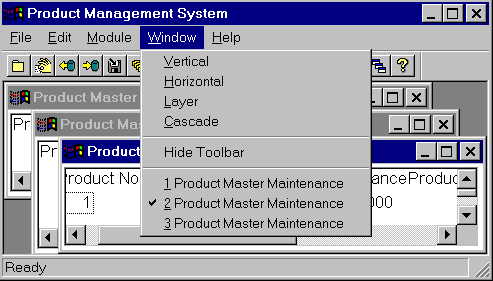
Try running the application to see how the menu option allows you to open multiple instances of w_product_master:
You can see from the 'Window' menu that we have opened three instances of the same window and the sheets are displayed in a cascaded fashion.
At this time, open "w_product_master", and open the "Window properties" dialog box and assign "m_sheet_menu" menu to this window by typing "m_sheet_menu" for the 'Menu Name' prompt. Save it and close the window.
Now, run the application. You will observe that PowerBuilder displays a new menu when you open an instance of "w_product_master" by selecting 'Module/Product Master Maint' from the menu.
Now try to open another instance of "w_product_master" from the new menu, you can't do that. That is because, you wrote the script for "m_mdi_menu" menu, and NOT for "m_sheet_menu". So, copy the script from "Module/Product Master Maint" in "m_mdi_menu" to "Module/Product Master Maint" in "m_sheet_menu".
At this point, you can see all the CommandButtons painted in "w_product_master". Even if you open ten instances of the same window, you can still see them in all windows. Don't you think that we can get rid of all the CommandButtons and push the functionality into the menu options. If done, user will be selecting the menu options, instead of clicking on CommandButtons. Let's learn more about this user interface.
| Home | Previous Lesson: Converting to a MDI Application Next Lesson: Creating a New User Interface |