
| Home | Previous Lesson: MDI Concepts Next Lesson: Converting to a MDI Application |
In a MDI application, there is a main window ( not to be confused with PowerBuilder window, of type 'Main' ), and other windows or sheets opened within it. This main window can have one of two PowerBuilder window styles: MDI Frame or MDI Frame with Microhelp.
|
Typically, PowerBuilder Main windows are opened in MDI Frame as sheets. |
Generally, MDI window has a status bar for displaying Microhelp and menu bar. This menu bar is displayed until a sheet is opened in the window. If the opened sheet has an associated menu, PowerBuilder replaces the menu associated with the MDI window with the sheet's menu. When a sheet is active, the rest of the sheets are deactivated and the title bars of those sheets are grayed out. If there isn't a menu attached to a sheet, the menu associated with the MDI frame remains displayed and is active for that sheet.
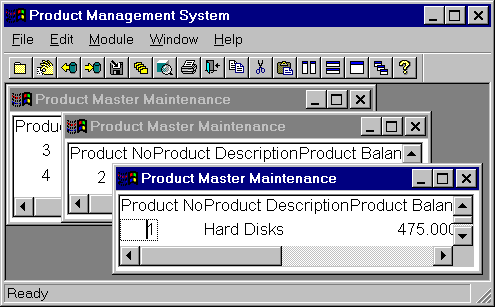
The MDI frame window has three parts:
 |
Frame |
|
Client area |
|
Sheets |
The Frame Area consists of menu bar, window title and the status bar to display Microhelp. If you paint anything other than new sheets on the MDI Frame window, that area will also be included in the frame area. The toolbar attached to the menu is also part of the frame area.
The area between an MDI Frame title bar and the Microhelp status bar is called the Client Area and it is here that the sheets are opened. The Client area is automatically resized to take into account menus, toolbars and help status bars that are attached to any of the sheets.
However, if you paint any object in the frame window, this automatic resizing is canceled and resizing the client area has to be done programmatically.
OpenSheet() and OpenSheetWithParm() are the two functions provided by PowerBuilder to open sheets in the client area. Any type of PowerBuilder window can be opened as a sheet in a MDI Frame window except, of course, another MDI Frame window. In other words, you can't embed MDI Frames within each other.
The standard sizing, minimizing and maximizing features of windows are automatically defined by PowerBuilder when using the OpenSheet() or OpenSheetWithParm() functions. As an example, suppose you define a window of type Main, as non-resizable without control menu, maximize and minimize icons. When you open this window with Open(), all the properties you defined are retained. However, when you open the same window with OpenSheet() or OpenSheetWithParm(), it is opened with the standard features of an MDI sheet, which include the resizable properties and control menu, maximize and minimize icons. Even if a response window is opened using OpenSheet() or OpenSheetWithParm(), PowerBuilder automatically enables all the standard features.
|
When you close a MDI Frame, PowerBuilder first closes all the sheets that are opened within the "MDI Frame" window and then closes the MDI Frame. |
Whenever a MDI Frame is painted and saved, PowerBuilder automatically creates a control called MDI_1 which refers to the Client area. Use this name in your scripts to specifically refer to the Client area, but, note that unlike other controls, MDI_1 has no events associated with it.
 |
Note that MDI_1 is not a reserved word, so, there is nothing that can stop you from calling a control as MDI_1. However, this isn't recommended, as it obviously creates a confusion in the script. |
If you add an object to the MDI frame, the size of the client area will be affected. Resizing of the client area has to be taken care by you, by writing script for the MDI Frame resize event.
|
If you don't resize the client area in your script, users will be able to open sheets, but they won't be visible. |
When resizing the client area, you have to take the space occupied by the toolbars, objects and the status bar into account. The WorkspaceWidth() and WorkspaceHeight() functions help in determining the exact size of the MDI Frame.
Sheets opened in the MDI Frame are not visible if they are moved outside of the Frame area; the sheet area outside the Frame is clipped from view. You can, however, set vertical and horizontal scrollbars for an MDI Frame and they allow the user to see any sheet area that is by default outside of the MDI Frame. If scrollbars are not set, the user has to move the sheet by clicking and dragging it.
| Home | Previous Lesson: MDI Concepts Next Lesson: Converting to a MDI Application |